> ## Documentation Index
> Fetch the complete documentation index at: https://docs.myrmex.ai/llms.txt
> Use this file to discover all available pages before exploring further.
# Agent & Endpoint Security
> The Myrmex software agent: one program, two roles — Endpoint on a host, Collector for your integrations — installed from the console and driven by the AI agents.
This section is about the **software agent**: the program you install on a machine so Myrmex can see it and act on it. It is a different thing from the **AI agents** — Perseus, Centurion, Brontes and the rest — which decide *what* to collect and *what* to do. The software agent carries those decisions out.
Keep the two apart as you read. "Install the agent" always means the program on
the host. "The agent decided" always means an
[AI agent](/documentation/ai-agents/overview).
## One Program, Two Roles
You install the same binary either way. What changes is the **role** it plays, and you can switch a device between them from its detail view.
Runs **on the host you want to watch** — a workstation or a server. It
collects the machine's telemetry and carries out response actions there.
Runs as a **bridge to your integrations**, reaching systems that cannot run
the agent themselves — a firewall, a SIEM, a cloud account.
## What It Does
The agent follows one model: **collect → enrich → respond**. It gathers telemetry from the operating system, normalises it, and executes actions when an AI agent asks it to.
The telemetry it collects and the actions it can take on a host.
How the collect, enrich and respond stages fit together on the machine.
## Where to Start
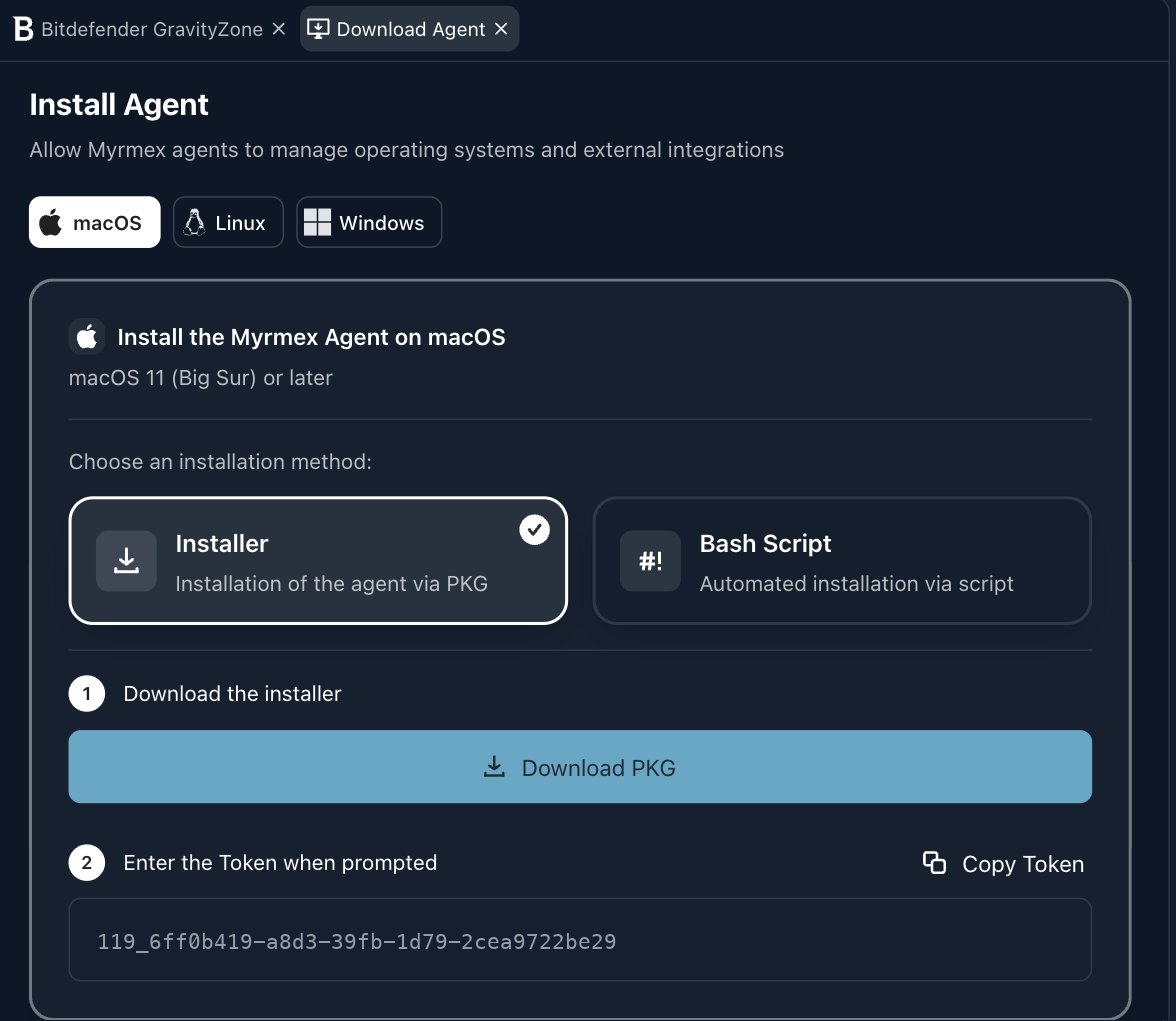
Install it from **Download Agent** in the console. You pick the operating system, choose between the installer and a script, and the page hands you an installation token to paste during setup.
 A new device registers as **unauthorised** and waits for you to approve it — nothing is collected until you do.
## Where to Go Next
The full install walkthrough for Windows, Linux and macOS.
Browse everything registered, grouped into folders and ranked by severity.
Open one machine to authorise it, switch its role, set rules and audit it.
Review pending operating-system updates and approve the proposed schedules.
How the agent enrolls, proves its identity and talks to the platform.
A new device registers as **unauthorised** and waits for you to approve it — nothing is collected until you do.
## Where to Go Next
The full install walkthrough for Windows, Linux and macOS.
Browse everything registered, grouped into folders and ranked by severity.
Open one machine to authorise it, switch its role, set rules and audit it.
Review pending operating-system updates and approve the proposed schedules.
How the agent enrolls, proves its identity and talks to the platform.