

Installation Guide
Before you begin deploying the Myrmex Endpoint Agent, it is essential to understand how the platform secures the initial connection between your devices and our cloud.Token-Based Authentication
The deployment process is anchored by an Ephemeral Installation Token. This ensures that only authorized devices within your organization can join the network.- 24-Hour Expiration: For security reasons, every installation token is valid for exactly 24 hours. If you do not use the token within this window, you must generate a new one from the Platform UI.
- Organization Scoped: Each token is uniquely tied to your Environment/Context, ensuring that even if a token is intercepted, it cannot be used to register devices for another organization.
- Zero-Touch Safety: By using a time-bound token, we eliminate the need to distribute or store long-term administrative passwords on your endpoints.
Network Requirements
To ensure the agent can communicate with the Myrmex Platform, your network must allow outbound traffic to the following addresses on port 443:fleet.myrmex.ai(WSS connection)api.myrmex.ai(Update and API requests)myrmex.ai(Portal and core services)
- Windows
- Linux
- macOS
Windows Installation
For Windows systems (Windows 10+ and Windows Server 2019+), the process is simple and straightforward:Download the Installer:
You will receive a URL for a pre-configured MSI package. Click the link to download the file (e.g., MyrmexAgentInstaller.msi). Save it to an easily accessible location, such as your “Downloads” folder.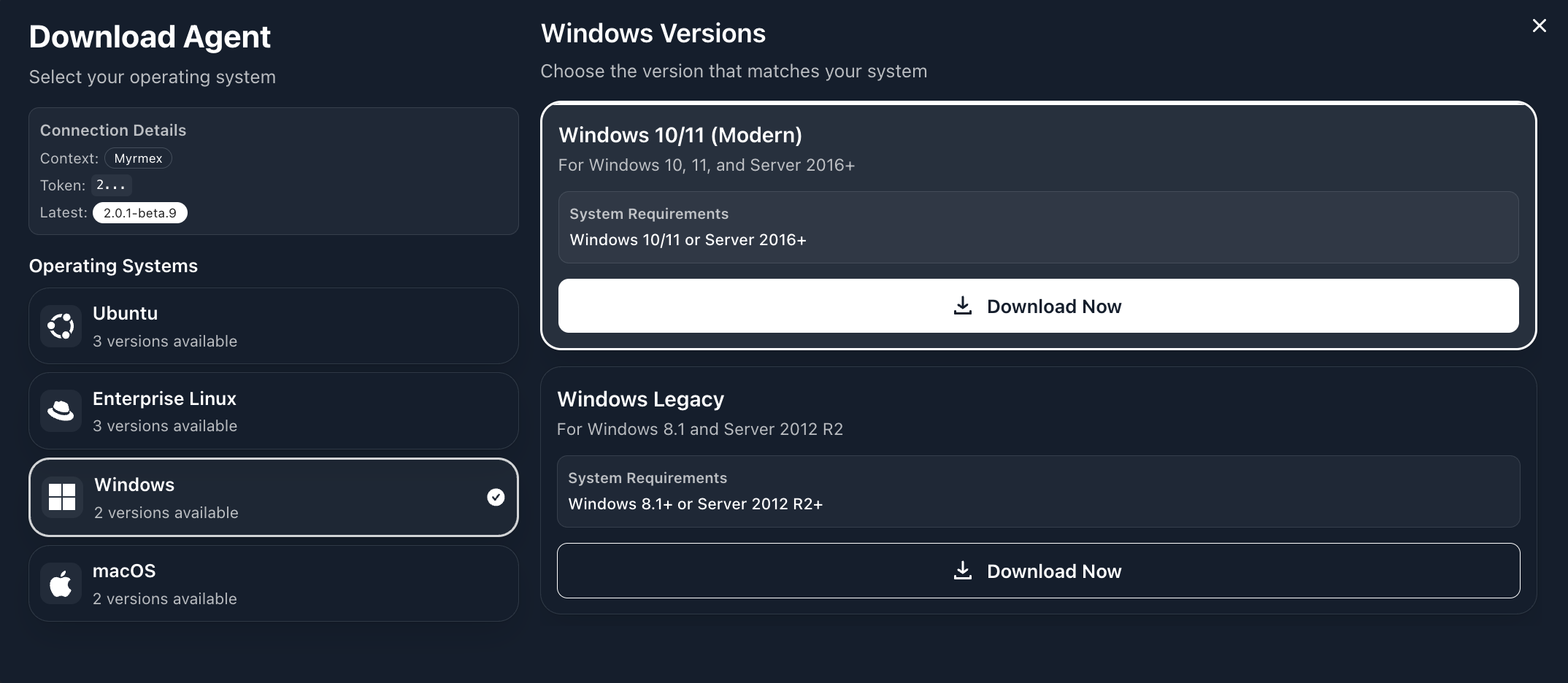
Run the Installer:
Navigate to the folder where you saved the file (MyrmexAgentInstaller.msi) and double-click on it.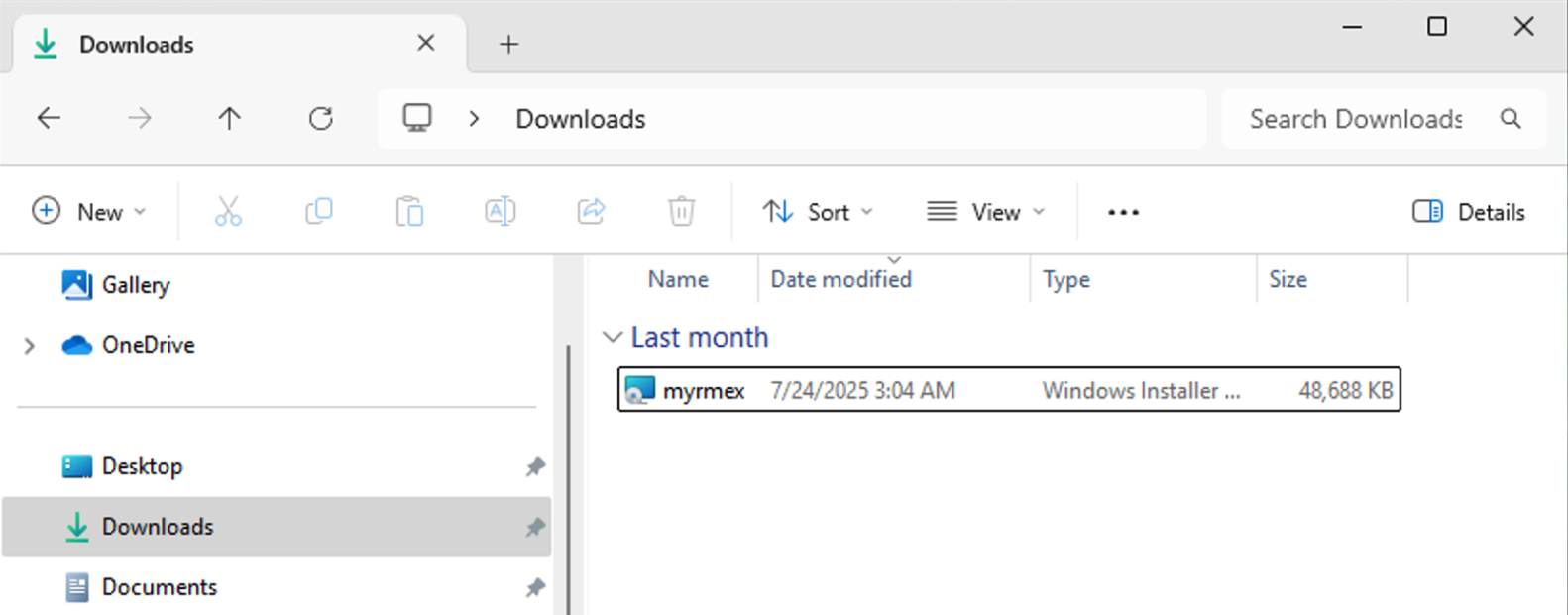
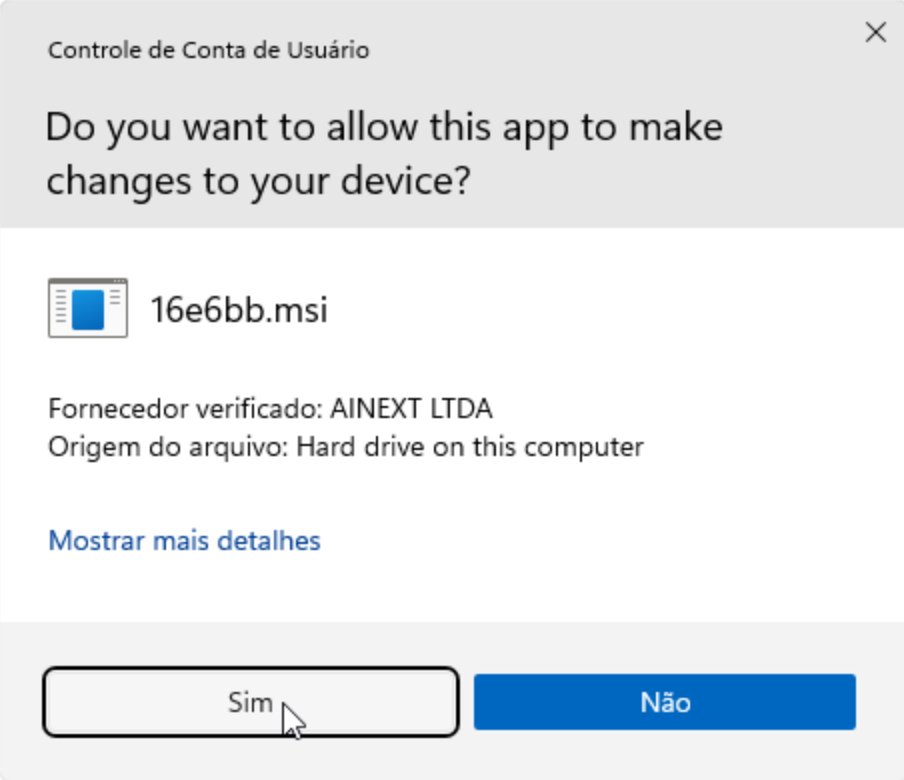
Follow the Setup Wizard Instructions:
The Myrmex Agent installation wizard will start. Follow the on-screen instructions by clicking “Next” and then “Install”.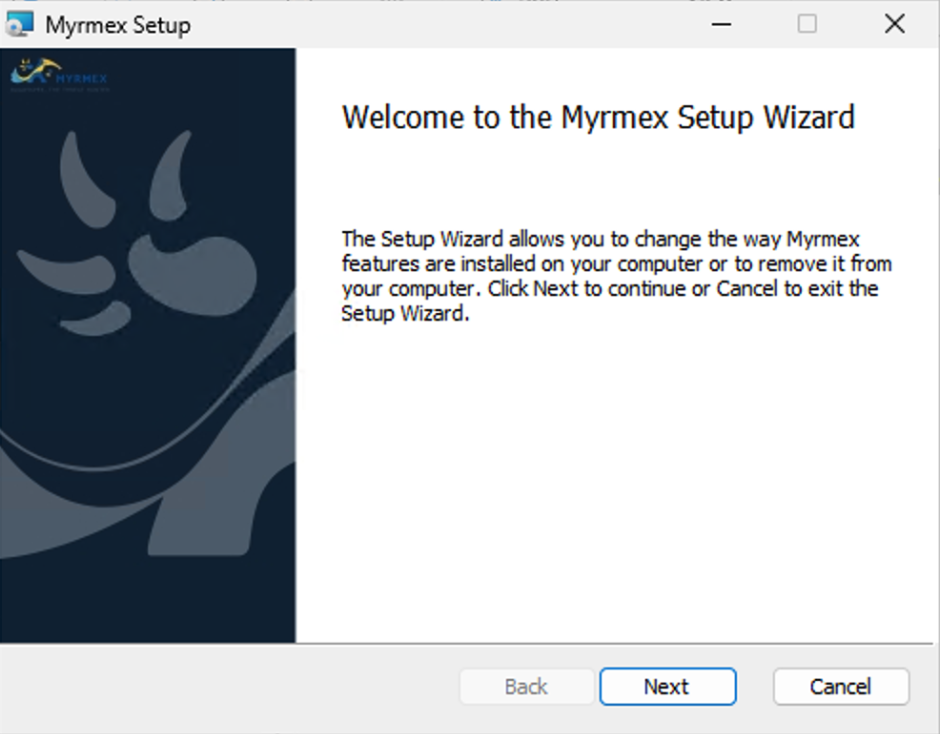
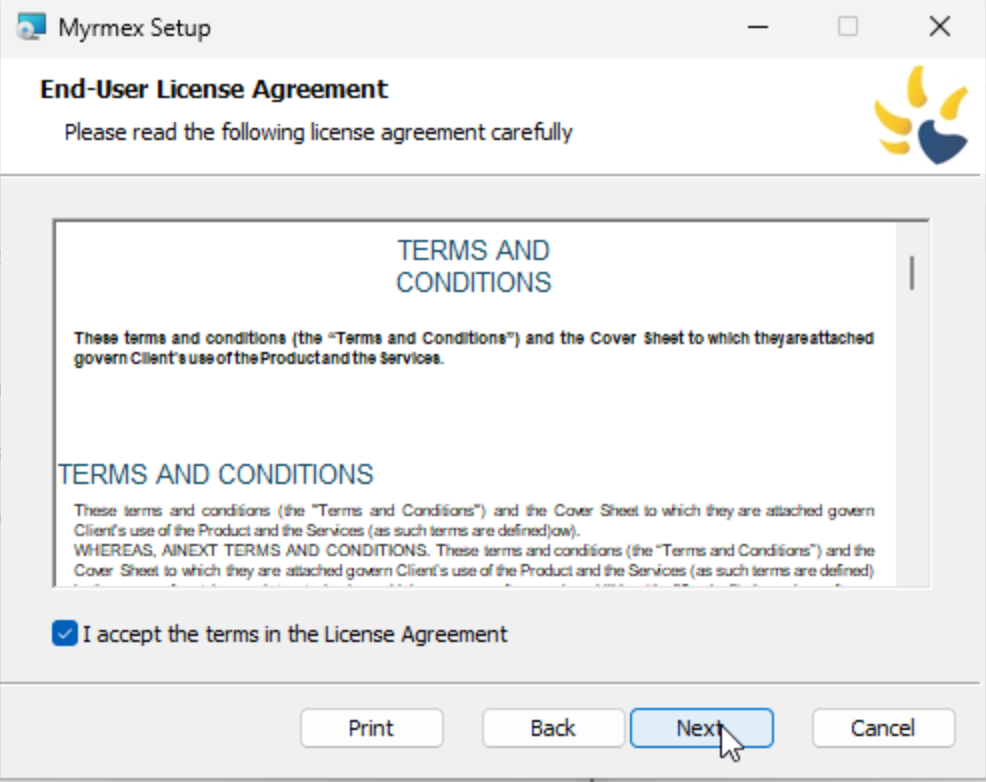
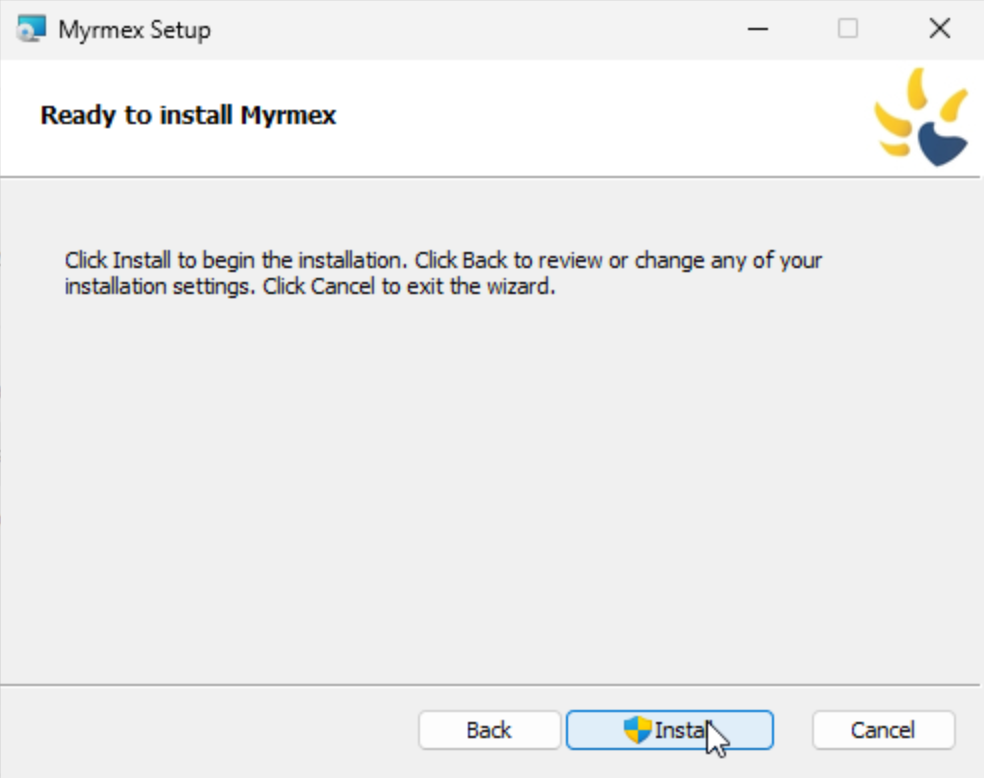
Complete the Installation:
At the end, click “Finish”. The agent will start automatically and attempt to connect to the Myrmex cloud.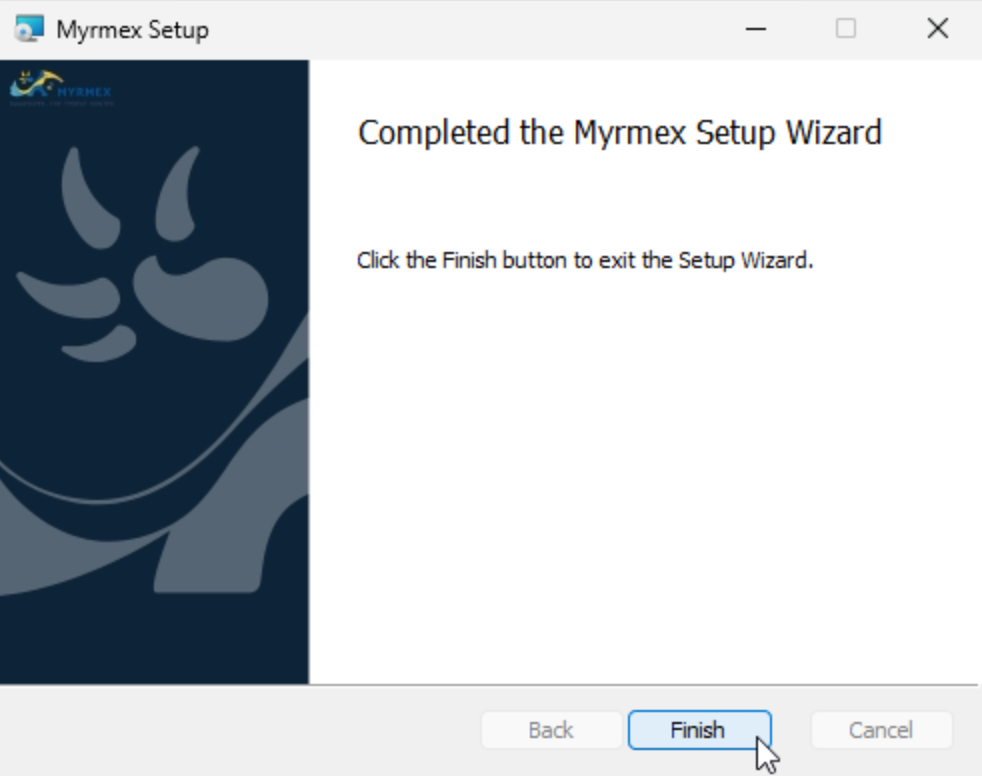
Myrmex Endpoint Agent Updates
Myrmex Endpoint Agent is designed to ensure your devices are always protected with the latest versions, without requiring manual intervention.- Automatic Updates: All updates are performed automatically, eliminating the need for manual installations by users.
- Rigorous Testing: Before release, new versions undergo a strict validation process, ensuring software reliability and stability.
- Gradual Rollout: Updates are distributed gradually, minimizing impact and preventing disruptions in customer environments.