

Overview
The profile settings page in MYRMEX allows you to define and manage personal profile information, and associate or disassociate your login with Google or Microsoft.MYRMEX Profile
Your profile is how other members of your organization recognize you in MYRMEX. Configure or update your name, email address, and phone number by clicking on your profile, located in the top right corner, and then clicking on My Profile. To update your profile picture, upload an image with a maximum size of 3.1MB in the following formats: *.jpeg, *.jpg, *.png, *.gif. If you access MYRMEX using Google or Microsoft authentication, your email address is provided by your account with these providers. You can unlink your login from these providers and configure access through the MYRMEX platform.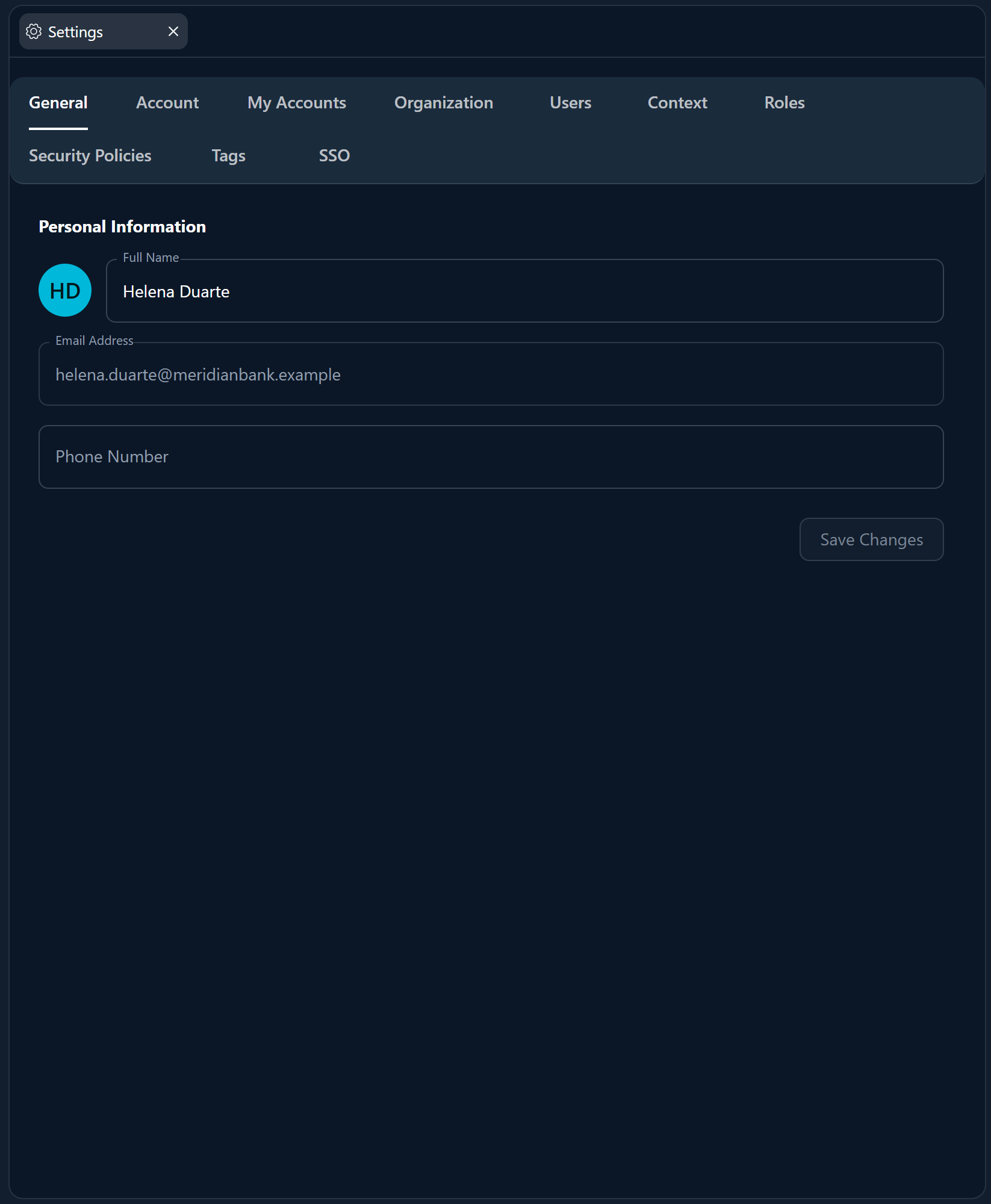
Organizations
Your profile can be associated with multiple organizations, as long as you are invited by an organization administrator, and you can select which organization to view from the dropdown list in the platform header.If you choose to leave an organization, you cannot return until an administrator invites you again.
Appearance
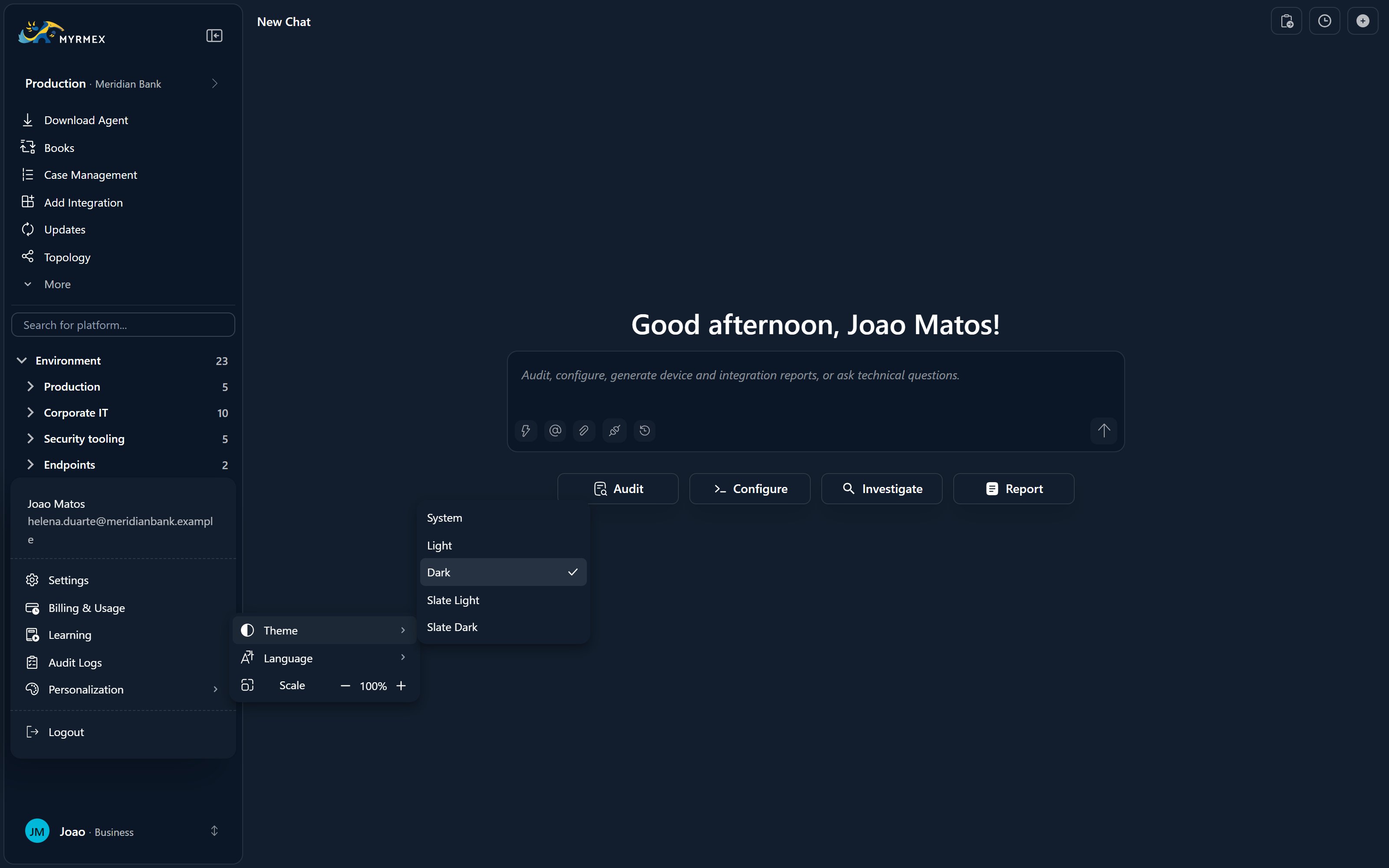
MYRMEX automatically adapts to your system settings, but if you prefer, you can modify the MYRMEX theme using the theme option in the platform header.Keep your profile information up to date to ensure effective collaboration within your organizations.
Account Settings
Profile Information
Profile Information
Manage your basic profile information:
1
Access Profile
Navigate to Account Settings > Profile
2
Update Information
- Name
- Contact information
- Language preferences
3
Save Changes
Confirm your profile updates
Security Settings
Security Settings
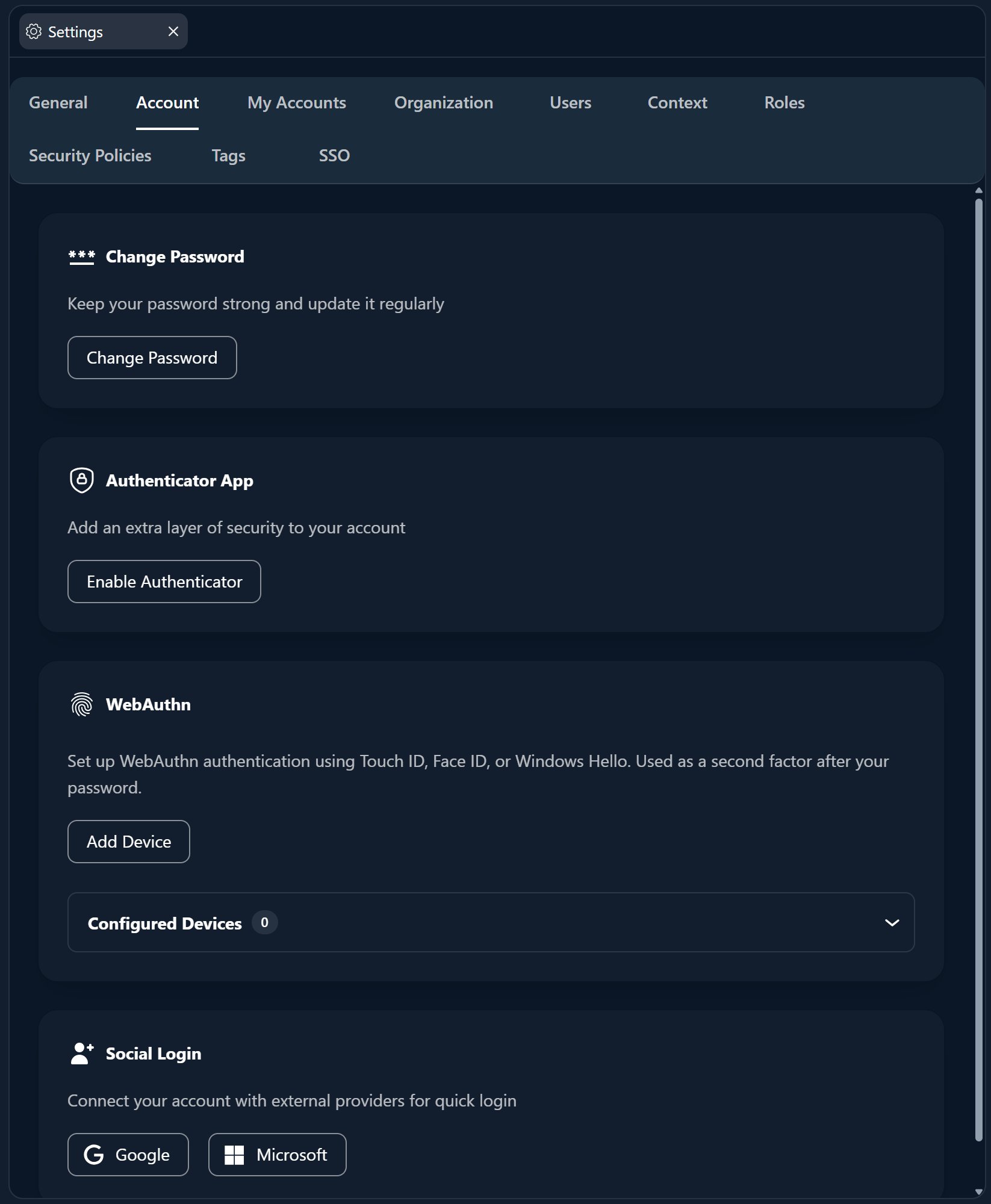
Enhance your account security:
1
Password Management
Change password and set password policies
2
Two-Factor Authentication
Enable and configure 2FA
3
Access History
Review recent account activity
Notification Preferences
Notification Preferences
Configure how you receive updates:
- Email Notifications: Reports, system updates
- Platform Notifications: Real-time messages
- Report Scheduling: Configure automated report delivery
Best Practices
Follow these recommendations for account management:
- Regularly update your password
- Enable two-factor authentication
- Keep contact information current
- Review account activity periodically
Regular maintenance of your account settings ensures secure and efficient access to MYRMEX features.