

- Left Sidebar (Directory): Navigation and organization.
- Workspace (Central): Data management and visualization.
- Right Sidebar (Chat): AI assistance and collaboration.
1. Left Sidebar (Directory)
The Left Sidebar is your main navigation hub, designed to function as a directory for all platform modules.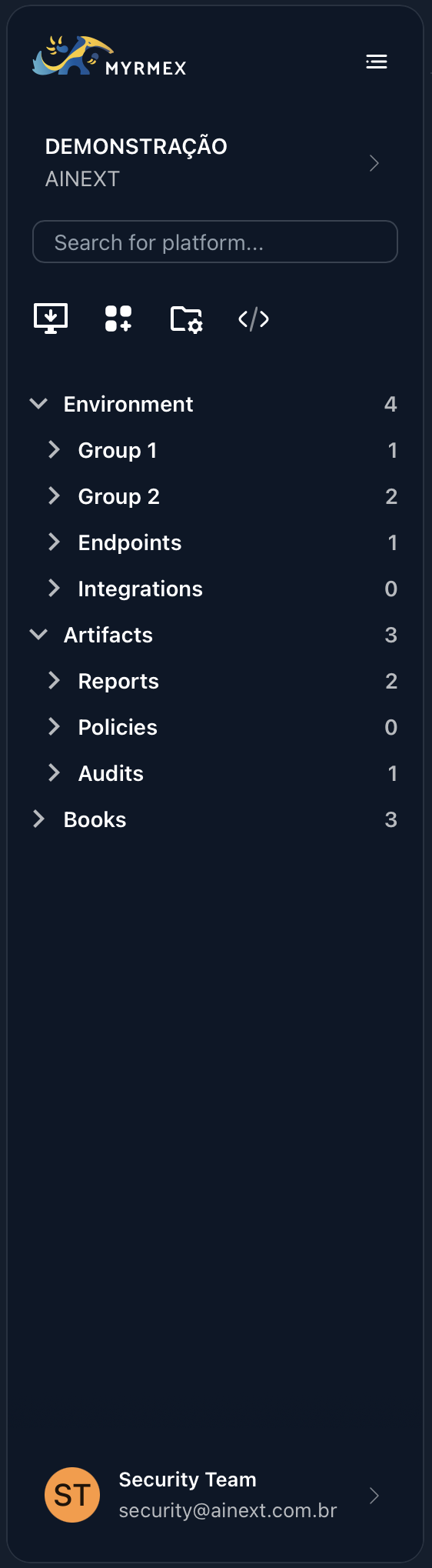
Key Functions
- Module Navigation: Access all core Platform modules (Inventory, Risks, Settings, etc.) organized by category.
- Collapse/Expand: Maximize your workspace by collapsing the sidebar when not in use.
- Quick Access: Jump between modules efficiently.
- Status Breakdown: Hover over “Environment” categories (like Endpoints or Integrations) to see a real-time summary of Online vs Offline assets.
Folder Management
The platform allows you to organize your environment resources (devices, integrations) using custom folders. This can be managed directly from the Left Sidebar or via a dedicated Folder Management tab. 1. Context Menu Actions (Right-Click)- On Environment/Category: Right-click to Create Folder.
- On Devices/Integrations: Right-click to access the Move to Folder option.
- On Folders: Right-click to Create Sub-folder, Delete, or Rename. You can also Move Up/Down to reorder them in the list.
- Drag & Drop: Easily move devices into folders or rearrange folder structures.
- Bulk Actions: Manage multiple items simultaneously.
- Folder Rules: Define specific instructions for the AI on how to handle resources within that folder.
Example Rule: “For all servers in the ‘Production’ folder, verify system health and suggest critical path analysis for any detected vulnerabilities.”
2. Workspace (Central)
The Central Workspace is where the operational orchestration. It displays the data, dashboards, and forms for the selected module.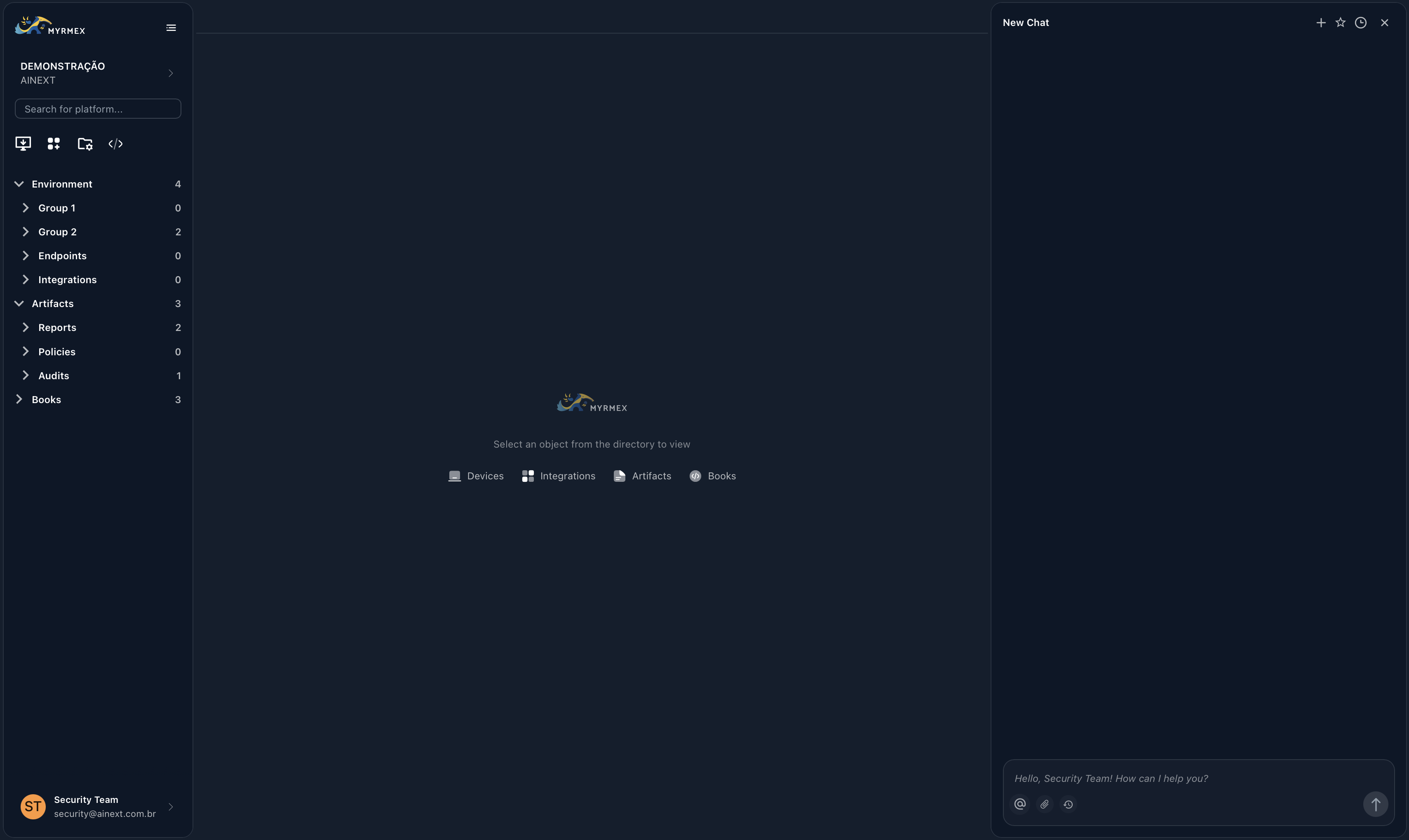
Data Management
- Data Grids: View and manage large sets of data (assets, users, policies) with advanced sorting and filtering.
- Dashboards: Interactive charts and graphs for high-level monitoring.
- Breadcrumbs: Always know where you are with clear hierarchical paths at the top of the workspace.
Centralized Tabs System
The Workspace centralizes all your active tasks into tabs, keeping your workflow organized without needing multiple browser windows.- Supported Tabs: Devices, Integrations, Reports, and Clipboard.
- Clipboard Tab: A special tab where you can send text, tables, or JSONs directly from the Chat for better visualization and formatting.
Split View Multitasking
Located in the top-right corner of the workspace header, the Split View button allows you to divide the screen into two independent working areas.[!NOTE] > Requirements for Split View: To ensure the best experience, the Split View button only becomes active when:
- Screen resolution width is at least 1900px.
- The central workspace covers at least 60% of the total screen width (e.g., if sidebars are open).
3. Right Sidebar (Chat)
The Right Sidebar houses the Myrmex AI Chat, your always-on intelligent assistant.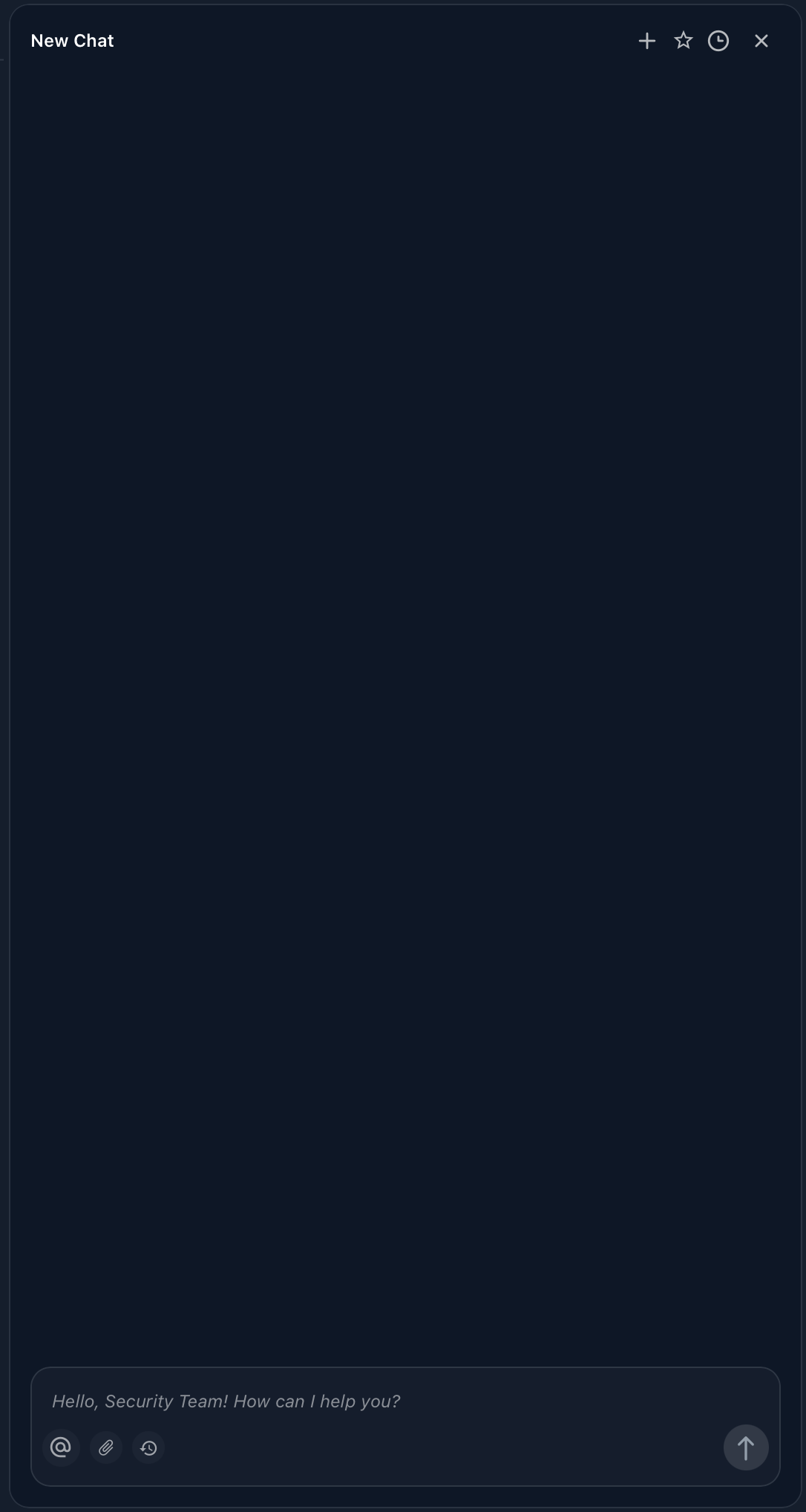
Core Chat Features
The Myrmex Chat is packed with features designed to streamline security operations and collaboration.1. New Chat
Start a fresh conversation context to pivot to a new topic without interference from previous context.2. Favorite Chat
Pin important or frequently accessed conversations for quick retrieval later.3. Chat History
Access a complete chronological log of past interactions to review insights or command outputs.4. AI Reasoning & Integrations
Gain visibility into the “black box”. See exactly what the agent is thinking, which tools it is deciding to use, and view the raw output from integrations.5. Send to Clipboard
Seamlessly transfer complex data (Markdown tables, JSON, code blocks) from the chat response directly to your Workspace Clipboard tab for better viewing and editing.6. Contextualization
Link specific assets—such as a Device, Integration, or Report—to the chat. This focuses the AI’s attention, allowing you to ask specific questions about that entity (e.g., “What is the uptime status of this server?“).7. Attachments
Analyze external data by uploading files directly to the chat.- Supported Formats: Documents (PDF, TXT), Images (PNG, JPG), and Audio files.
8. Message History (Reuse)
Work faster by recycling commands. Use the Up Arrow key in the input field to cycle through your recently sent messages.9. Smart Autocomplete
Speed up your typing with context-aware suggestions for commands and asset names as you type.The Chat interface is designed to be non-intrusive. You can open and close it
as needed without losing your place in the central workspace.