

To manage security policies, you need the
core.asset_groups.read permission. By default, the Super Admin and Admin roles have this permission.Creating a Policy
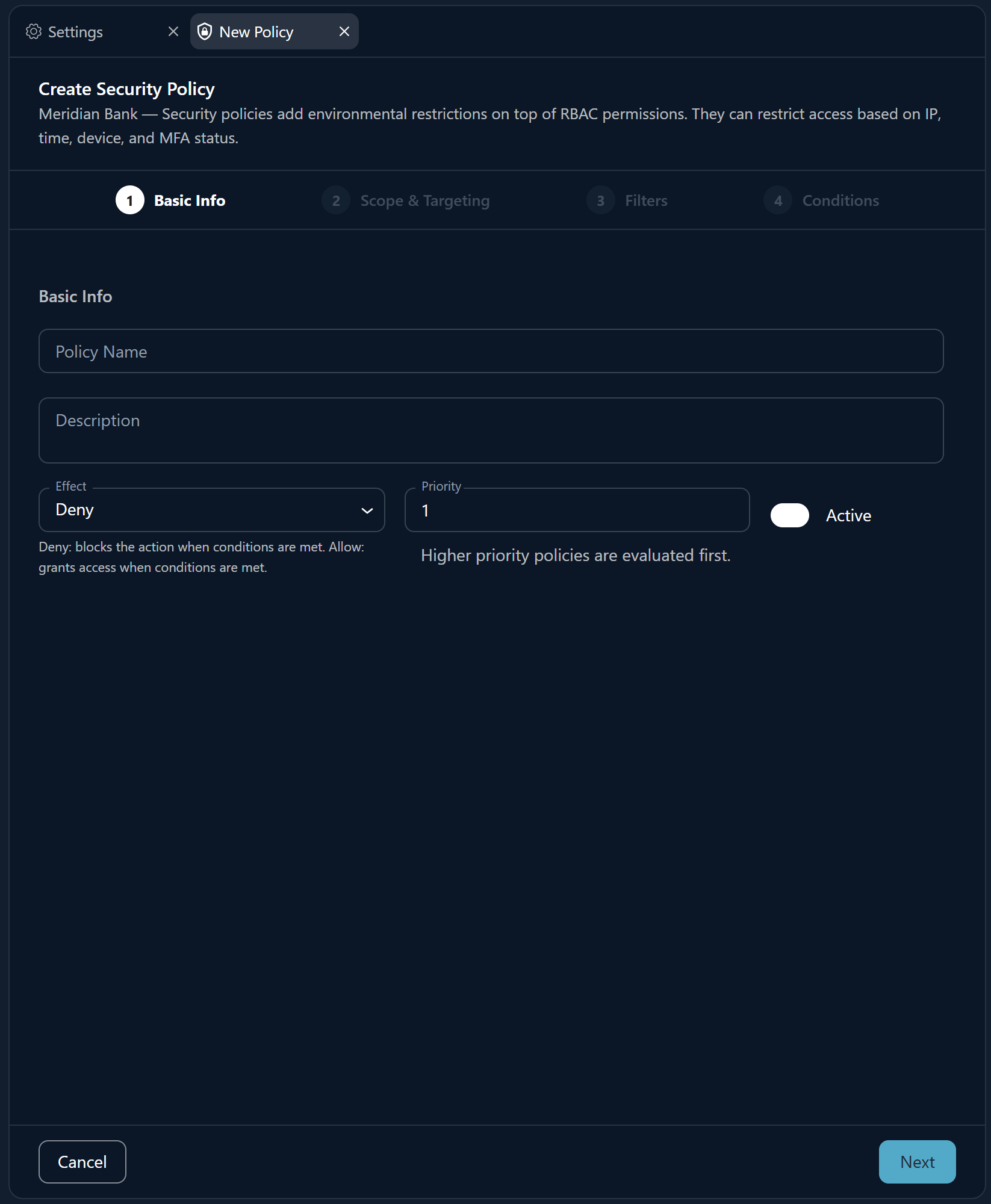
The policy creation form uses a three-step wizard to guide you through the configuration:1
Basic Information
Configure the policy’s identity and behavior:
Naming Convention: Use descriptive names that indicate the restriction. Examples: “VPN-Only Firewall Access”, “MFA Required for Production”, “Weekday-Only Viewer Access”.
2
Scope & Targeting
Define which requests this policy applies to. Leaving a field empty means “all”:Permissions & Roles:
- Target Permissions — Select specific permissions this policy affects (e.g.,
devices.read,integrations.execute). Leave empty to apply to all permissions. - Target Roles — Select which roles are affected. Leave empty to apply to all roles.
- Device Names (Regex) — Regex patterns to match device names (e.g.,
.*prod.*). - Device OS — Select from available operating systems: Windows, Ubuntu, Darwin, Amazon Linux. You can also type custom OS values.
- Integration Names (Regex) — Regex patterns to match integration names.
- Integration Bases — Select from a dropdown of all available integration types (e.g., Fortigate, AWS, Palo Alto). Integrations already registered in your environment appear first in the list.
3
Conditions
Add one or more conditions that define the environmental requirements:
- Click “Add Condition”
- Select the Attribute (source_ip, time_of_day, etc.)
- Select the Operator (compatible operators appear based on attribute)
- Enter the Value
- Repeat to add more conditions (all conditions use AND logic)
Managing Existing Policies
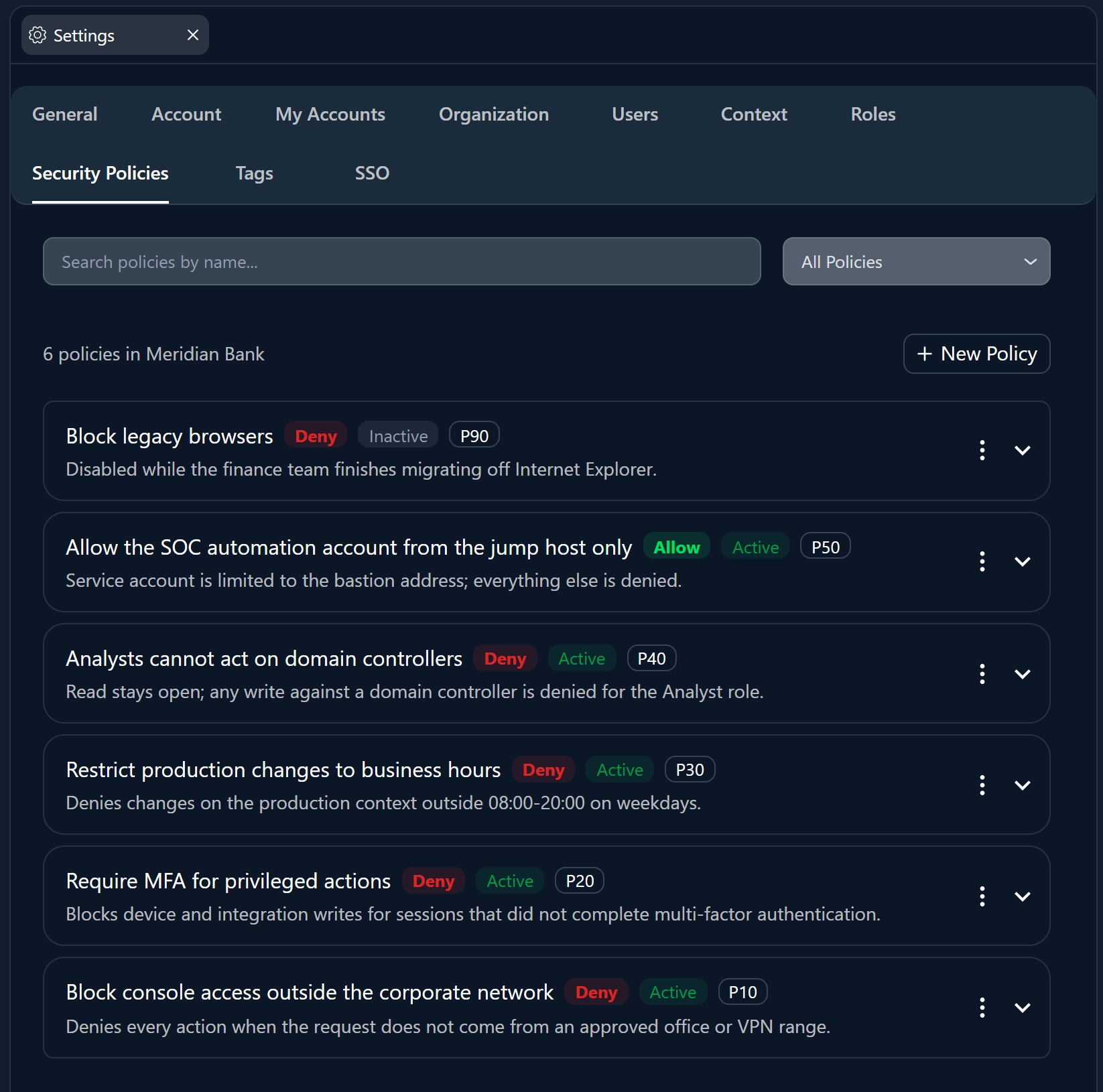
Policy List
The Security Policies tab shows all policies for your organization with key information at a glance:- Status indicator — Active (green) or Inactive (gray)
- Effect badge — Deny (red) or Allow (green)
- Priority number
- Description — Business context for the policy
Quick Actions
Toggle Active
Quickly enable or disable a policy without editing it. Useful for temporary overrides or maintenance windows.
Edit Policy
Open the policy wizard to modify any field. All three steps are immediately navigable when editing.
Delete Policy
Permanently remove a policy. This action cannot be undone.
Policy Organization Tips
Priority Strategy
Organize your policies using a consistent priority scheme:When two policies have the same priority and both match a request, Deny policies take precedence over Allow policies. This follows the security principle of “deny by default.”
Combining Policies
Policies are independent — they don’t inherit from or conflict with each other. This means you can layer policies for different dimensions:Example: Layered Security for Production
Example: Layered Security for Production
Policy 1: Corporate VPN Required (Priority: 100)
- Effect: Deny
- Target: All permissions
- Condition:
source_ipin203.0.113.0/24
- Effect: Deny
- Target Roles: Analyst
- Conditions:
time_of_daybetween08:00–18:00ANDday_of_weekin Mon–Fri
- Effect: Deny
- Target Device Names:
.*prod.* - Condition:
mfa_statusequalstrue
- Be on the corporate VPN (Policy 1)
- Access during business hours on weekdays (Policy 2)
- Have MFA active (Policy 3)
Example: Regional Access Separation
Example: Regional Access Separation
Policy 1: LATAM Team — LATAM IPs Only (Priority: 80)
- Effect: Deny
- Target Roles: LATAM Analyst (custom role)
- Condition:
source_ipin177.0.0.0/8
- Effect: Deny
- Target Roles: EMEA Analyst (custom role)
- Condition:
source_ipin185.0.0.0/8
Troubleshooting
Users are getting 403 errors unexpectedly
Users are getting 403 errors unexpectedly
Diagnosis steps:
- Check if a security policy is blocking the user — review all active policies targeting their role
- Verify the user’s IP, time, and MFA status match the policy conditions
- Temporarily disable the suspected policy to confirm it’s the cause
- Check policy priority — a higher-priority Deny policy may be overriding an Allow policy
Policy doesn't seem to apply
Policy doesn't seem to apply
Check these common issues:
- Is the policy Active? — Inactive policies are never evaluated
- Does the targeting match? — Verify the policy targets the correct permissions, roles, or devices
- Is the condition value correct? — Verify time zone (UTC), IP format (CIDR), and day spellings
- Cache delay — Policy changes may take up to 15 seconds to propagate through the cache
I locked myself out
I locked myself out
If a policy is blocking your own access:
- Access the platform from a network/time that satisfies the policy conditions
- If completely locked out, contact another Super Admin to disable the policy
- As a last resort, contact Myrmex Support
Next Steps
Policy Conditions Reference
Explore all six condition types with syntax, operators, and examples.
Security Policies Overview
Understand policy effects, targeting, priority, and the evaluation flow.
Native Roles
Review the five built-in roles to understand targeting options.
Permissions Reference
Full list of 81 permissions available for policy targeting.