

Finding the Endpoints Area
Open it from the Directory on the left of the console: expand Environment, then select Devices. Your inventory opens as a tab in the Workspace, with live counts alongside each category. Everything you see is scoped to the context you have selected.The Two Tabs
The inventory is split into two tabs, each with status-breakdown badges that summarize its contents at a glance:Devices
The endpoints running the Myrmex agent, across Windows, Linux, and macOS.
Integrations
Your connected external tools — cloud, firewall, SIEM, EDR, and more.
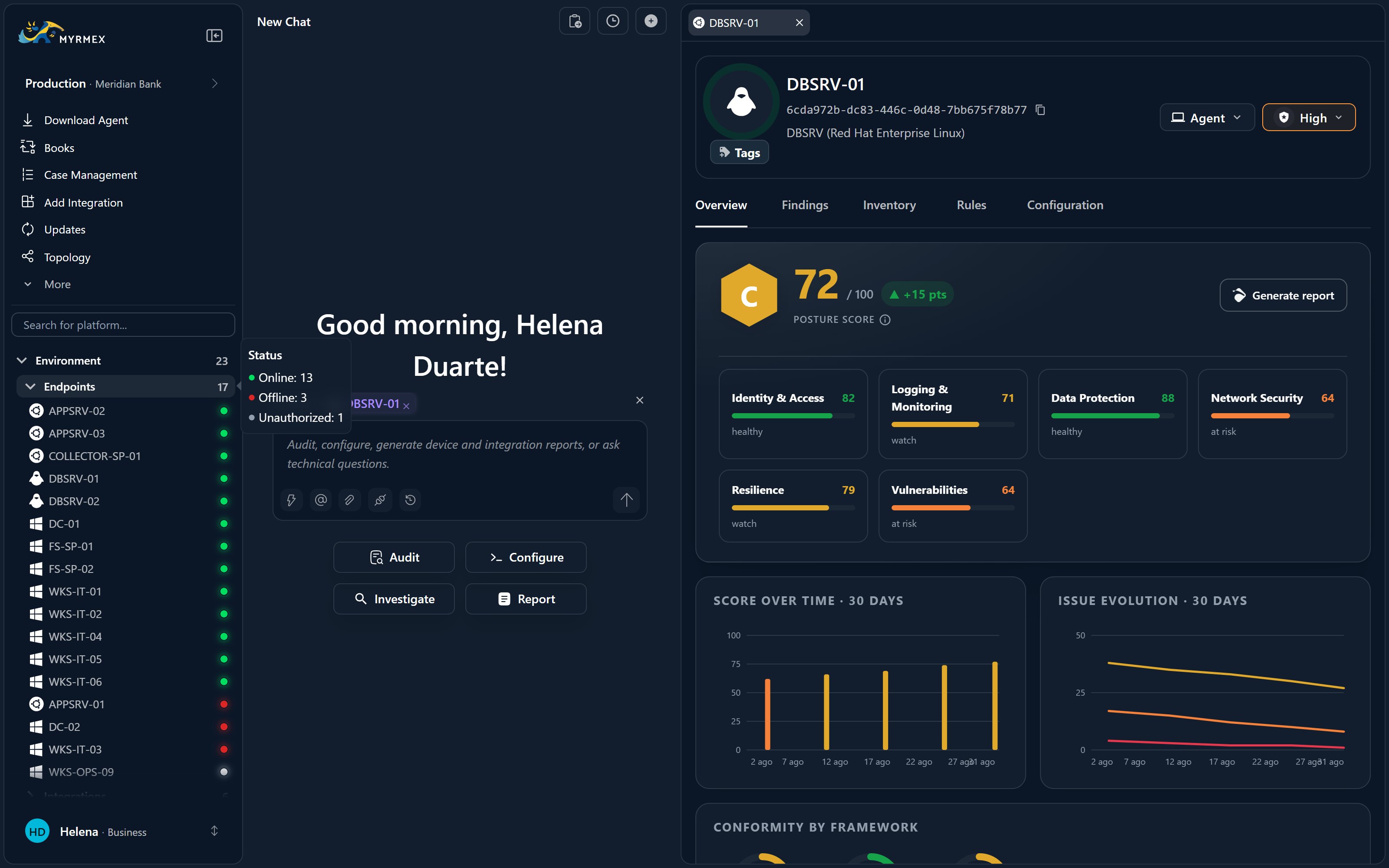
- Online — the device is connected and reporting.
- Offline — the device hasn’t checked in recently.
- Unauthorized — the agent is installed but the device is still awaiting approval. See Device details & actions to activate it.
Browsing and Searching
Each device is listed with an operating-system icon, its name, and its current status, so you can scan the fleet quickly. Use search to jump straight to a device by name, and narrow the list as your estate grows.Organizing Your Fleet
Keep a large estate navigable by grouping and labeling your devices.Folders
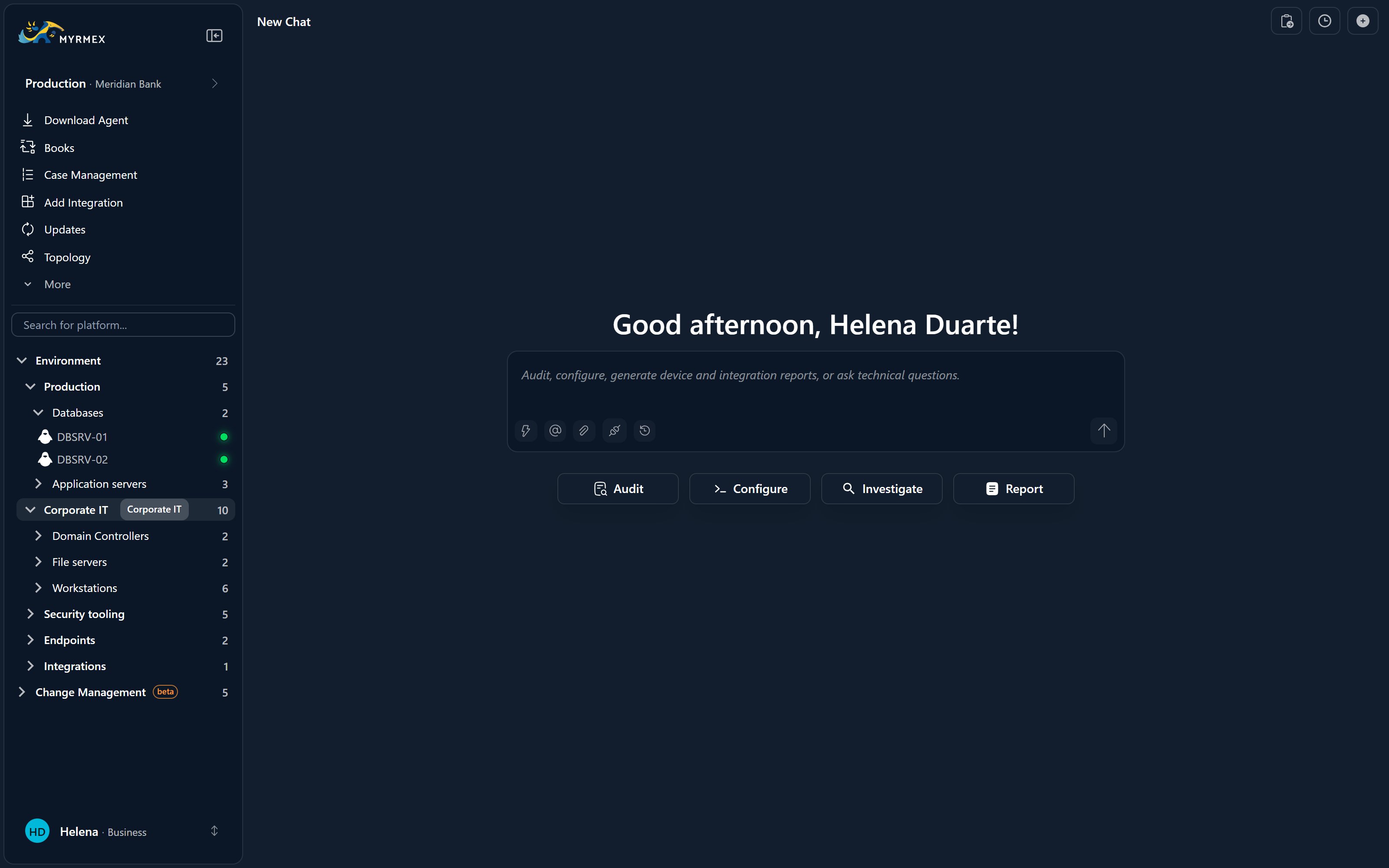
Group devices into nested folders that mirror how you think about your
estate — by location, business unit, or client — and drag them between folders as
things change.
Tags
Apply tags to label devices. Tags also drive access control, so they help
decide who can see and act on which assets.
Severity and Removing Devices
You can set a severity on a device to reflect how critical it is to your operations — this helps the AI and your team prioritize it during investigations and posture reviews. You can also delete a device to remove it from your inventory once it’s decommissioned. Both are available from the device’s own view too — see Device details & actions.Endpoints from Integrations
Not every endpoint runs the Myrmex agent. When you connect a security platform that manages its own agents — for example Wazuh — those managed endpoints appear inside that integration’s own view, so you keep full visibility without installing anything extra.Where to Go Next
Device details & actions
Open a device to see system info, authorize it, and run host actions.
Deploy the agent
Install the Myrmex agent so a new device shows up here.
Brontes
The agent that keeps your inventory accurate.