

This installs the software agent on a host. Once it’s authorized, the
AI agents can read its telemetry
and act on the host.
Get an Installation Token
Every install needs an installation token, which the console generates for you:1
Open Download Agent
Open the Download Agent page from the console.
2
Generate a token
Generate an installation token. It’s valid for 24 hours and is
reusable within that window, so a single token can onboard many hosts.
3
Pick your OS
Choose Windows, macOS, or Linux to get the matching installer and a
ready-to-run command with the token already embedded.
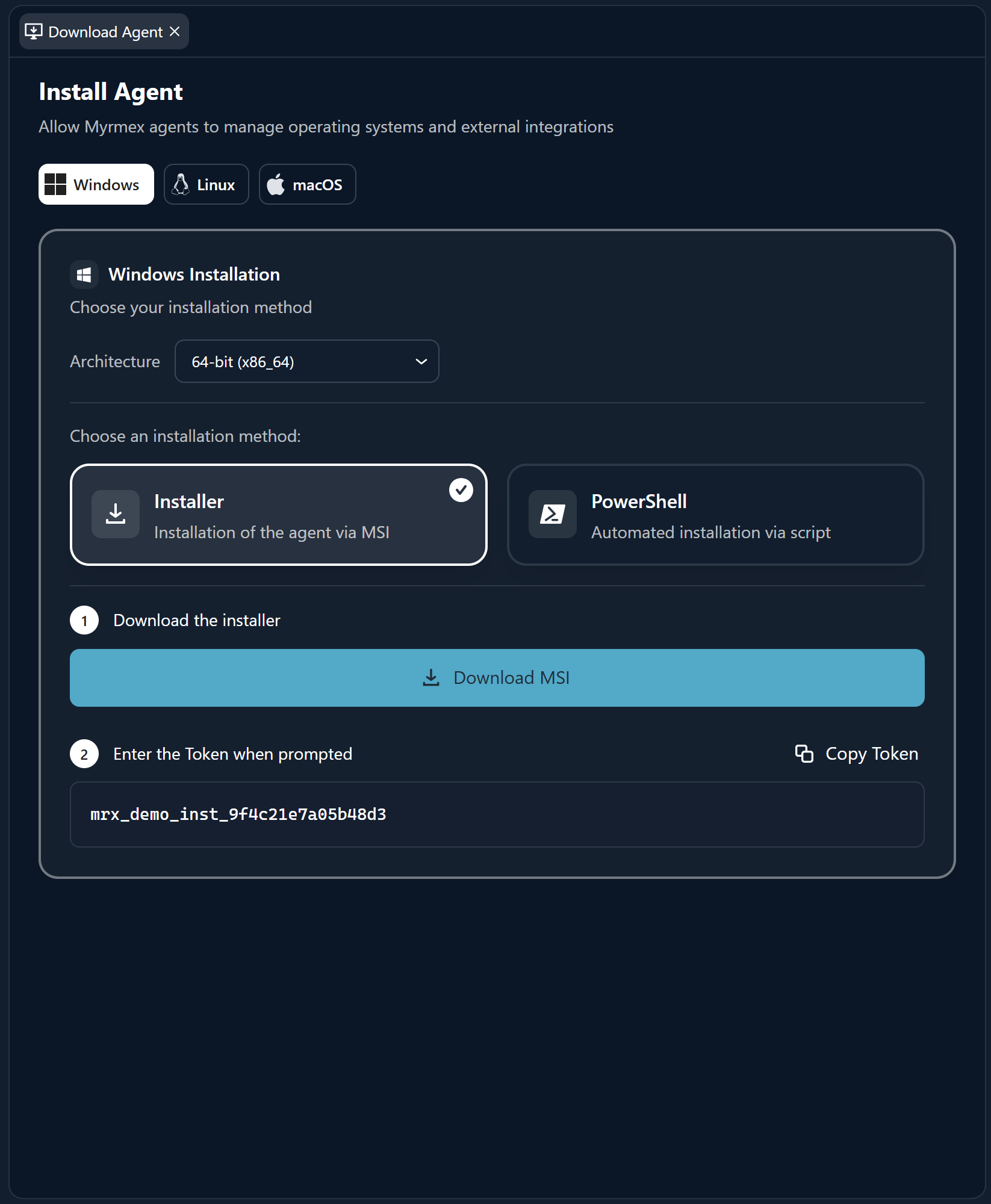
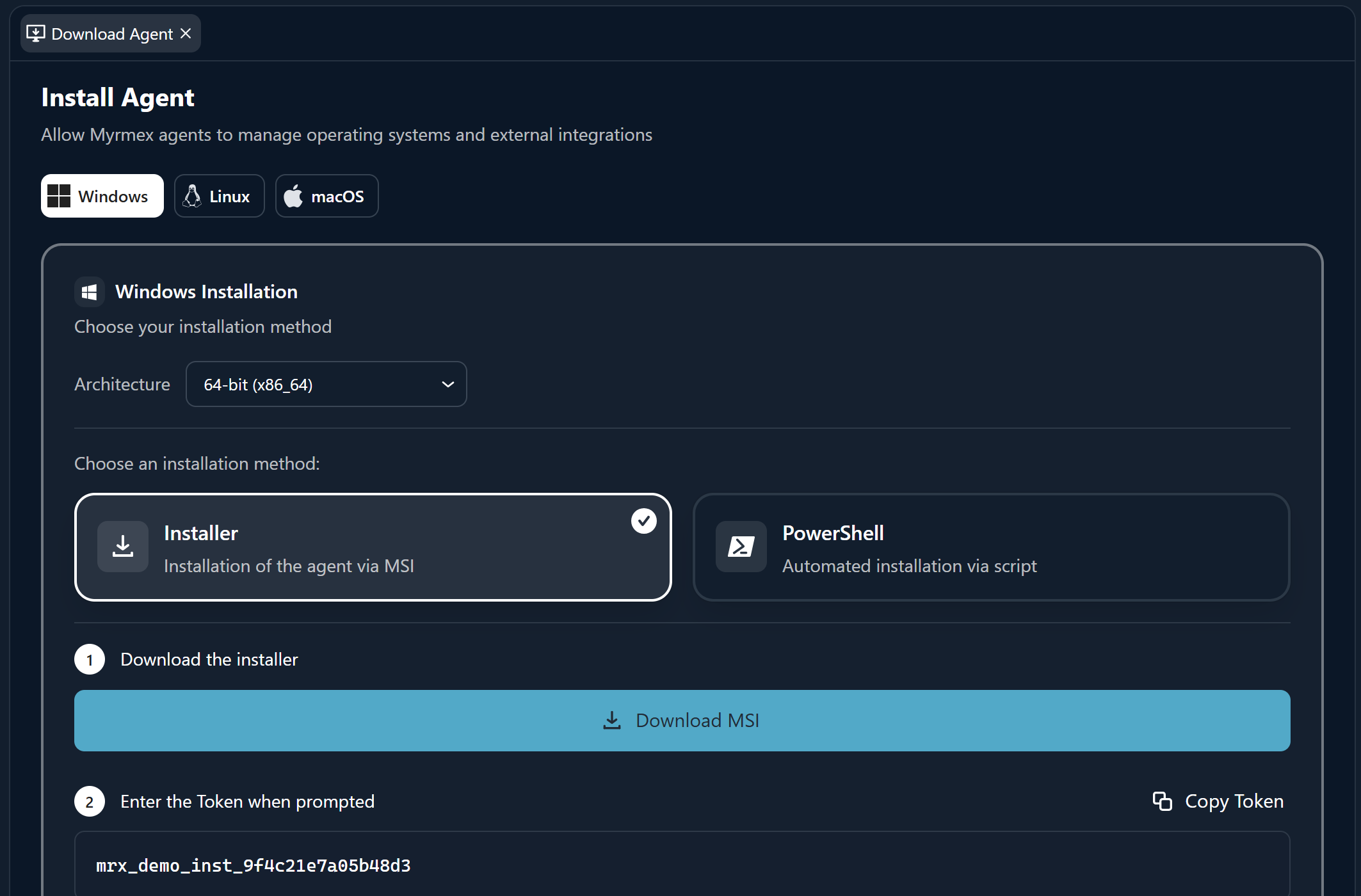
Windows
Requirements: Windows 10 or later, or Windows Server 2016 or later. Install as a local Administrator. Choose either method:- MSI package — download the MSI from the Download Agent page and run it. Approve the User Account Control prompt and follow the setup wizard to the end.
- PowerShell one-liner — run the command from the console in an elevated PowerShell session:
macOS
Requirements: a supported macOS version on Apple Silicon (arm64). Choose either method:- .pkg installer — download the
.pkgfrom the Download Agent page and run it, following the prompts. - Bash one-liner — run the command from the console in Terminal:
Linux
Requirements: a supported distribution — Debian, Ubuntu, Fedora, RHEL, CentOS, Oracle Linux, or Amazon Linux. Install as root (or withsudo).
Linux uses a single universal installer you run with curl | bash, passing your token as an environment variable:
During installation the host downloads dependency packages, so allow outbound
443 to
*.myrmex.ai and to your distribution’s official repositories. See
Collector mode
for the full network model.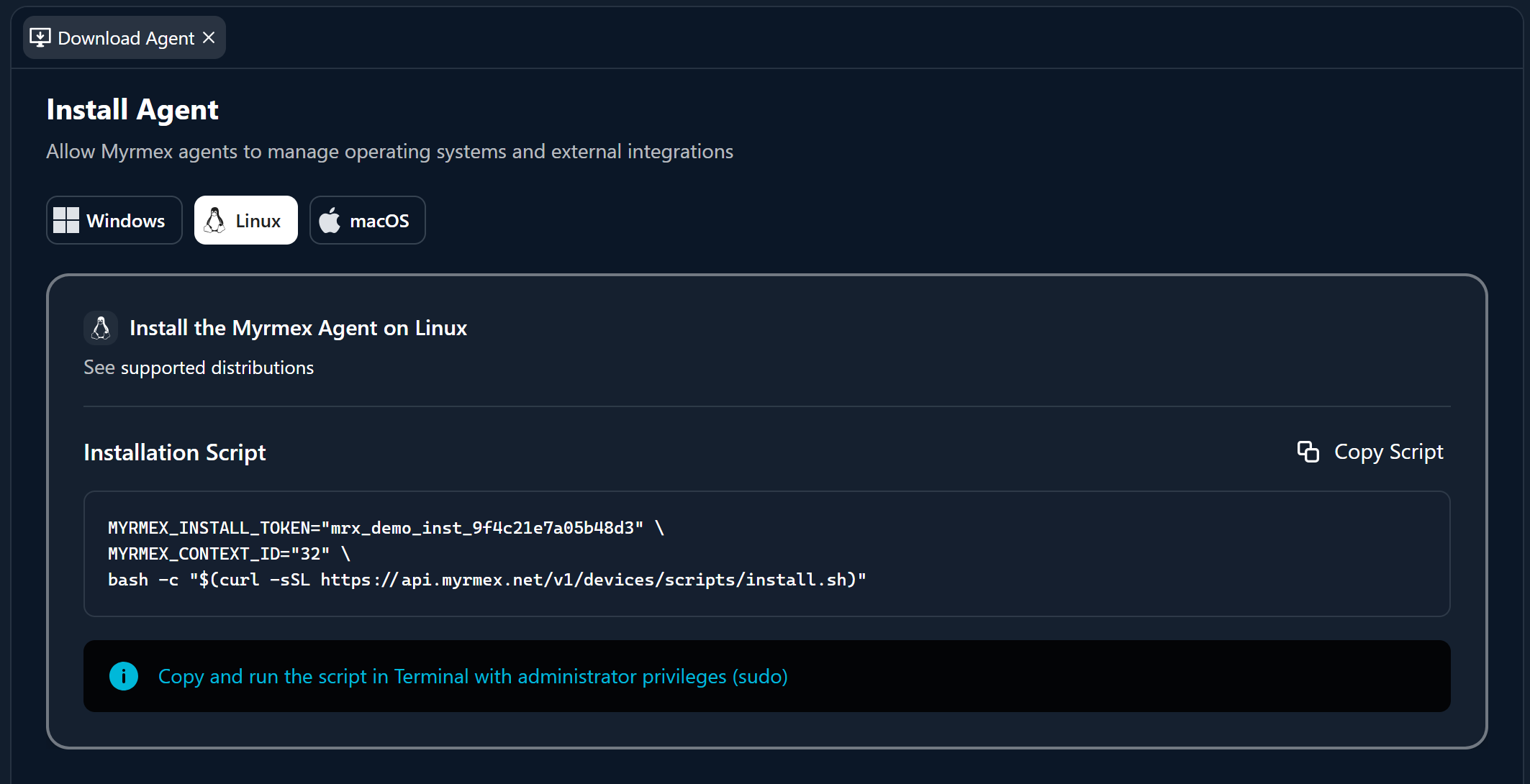
Authorize the Device
Open the new device from the Endpoints view or its detail view and choose Authorize. The device activates and begins reporting, and you can then set its role, rules, and more.Migrate a Host Between Contexts
A context is the organization / tenant a host reports into. To move an already-installed host from one context to another you don’t uninstall anything — you re-run the installer with the new context’s token, and the agent re-enrolls itself.1
Get the new context's install command
Switch to the target context and open its Download Agent page. Generate an installation token there and copy the ready-to-run command — it is scoped to that context.
2
Run it on the host
Run that exact command on the host as root / administrator — the same command as a fresh install. The agent re-registers against the new context: it obtains a new identity, rewrites
config.yml / env.conf to point at the new context, and reconnects. No uninstall or reboot is needed.3
Authorize it in the new context
The host appears in the new context’s Endpoints view as unauthorized. Approve it there to reactivate telemetry and response. In the old context it stops reporting and can be removed.
Re-running the installer simply overwrites the host’s context binding (
config.yml / env.conf) with the new context’s — that is the whole migration. The agent binary and its services stay in place.Where to Go Next
Device details & actions
Authorize, set the role, and run actions on the host.
Endpoint vs Collector
Choose how the device runs after install.
Agent communication
How enrollment and the token work under the hood.
Agent capabilities
What the agent does once it’s live.