

Opening the Updates Area
Reach it from the Directory on the left of the console — Updates is one of the quick actions above your environment. It opens as a tab in the Workspace, scoped to the context you have selected. You can also open it straight from chat by asking about a host’s updates.Update management is host-scoped — it covers the devices running the Myrmex
agent, not your integrations.
What You’ll See
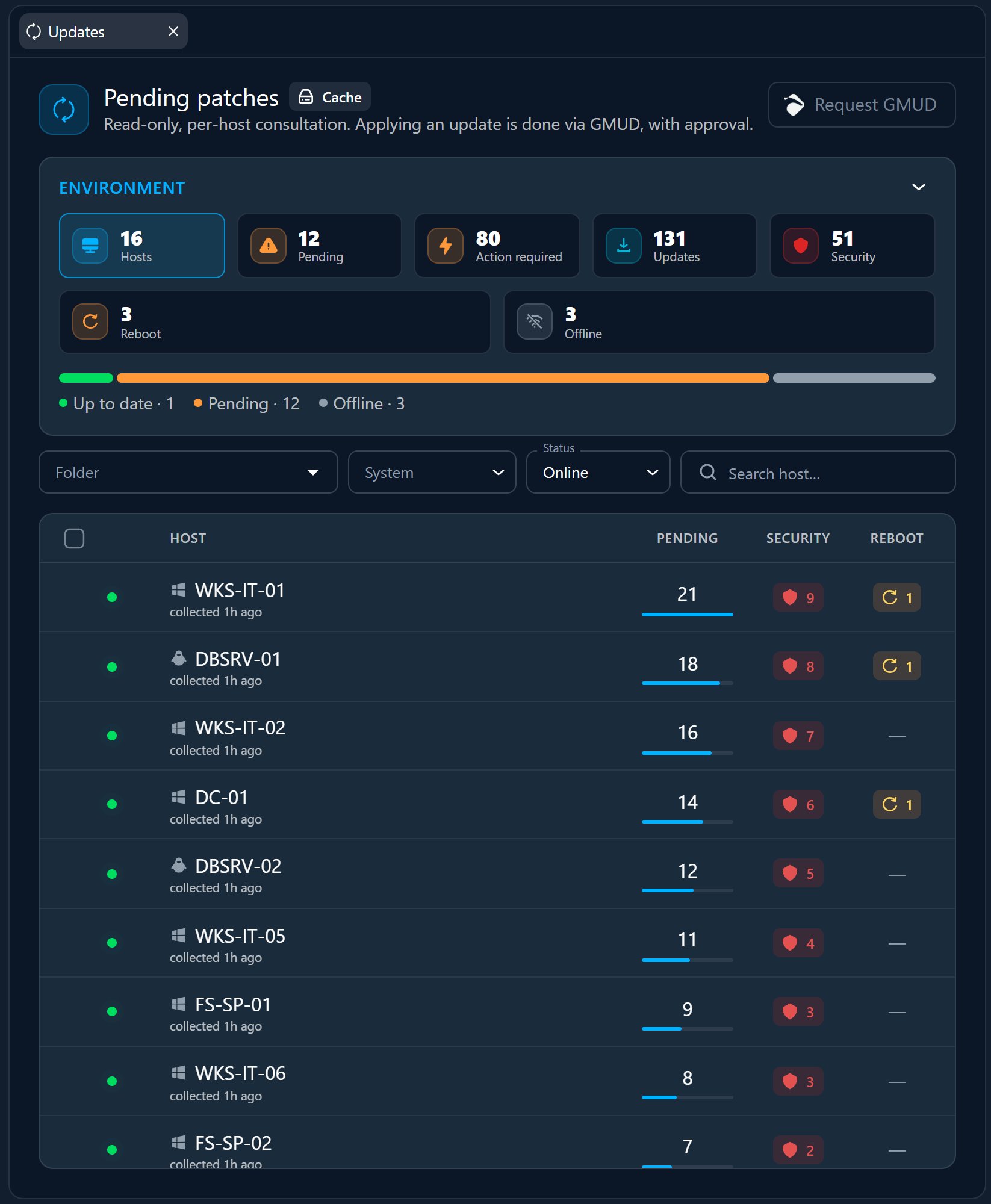
Pending patches
A read-only, per-host view of the OS updates outstanding across your fleet —
queried live, on demand. Consulting it changes nothing.
Applied as governed changes
Actually installing updates happens through a patch change record (GMUD)
with approval — never straight from this view.
How Patching Works
Consulting is separate from applying. The pending-patches view is read-only — it never installs anything. Applying updates is a governed change:1
Consult what's pending
Review the OS updates outstanding on each host. Myrmex queries your online
hosts live, on demand — nothing is stored, and nothing is applied.
2
The AI proposes a patch change
Centurion turns the
updates you want into a patch change (GMUD) with a maintenance window.
3
You approve
The patch change passes through the
approval gate. Approving
authorizes the agent to install the updates in the next maintenance window —
recorded under your user. Nothing lands on a host without approval.
Windows Updates
On Windows hosts, Myrmex works through WSUS (Windows Server Update Services) to approve and deliver operating-system updates, fitting into the standard Windows update mechanism.Where to Go Next
Device details
Open a host to see its details alongside its updates.
Endpoints view
Browse the fleet you’re keeping patched.
Change Management
How patch changes are approved and executed alongside standard changes.