

Organizing with Folders
Group your environment’s assets — devices, integrations, reports, playbooks, and runbooks — into nested folders that mirror how you actually think about your estate, whether that’s by site, business unit, environment, or client. There are two ways to manage them:Right-click in the Directory
Right-click a category to Create Folder, an asset to Move to Folder,
or a folder to Create Sub-folder, Rename, Delete, or reorder it.
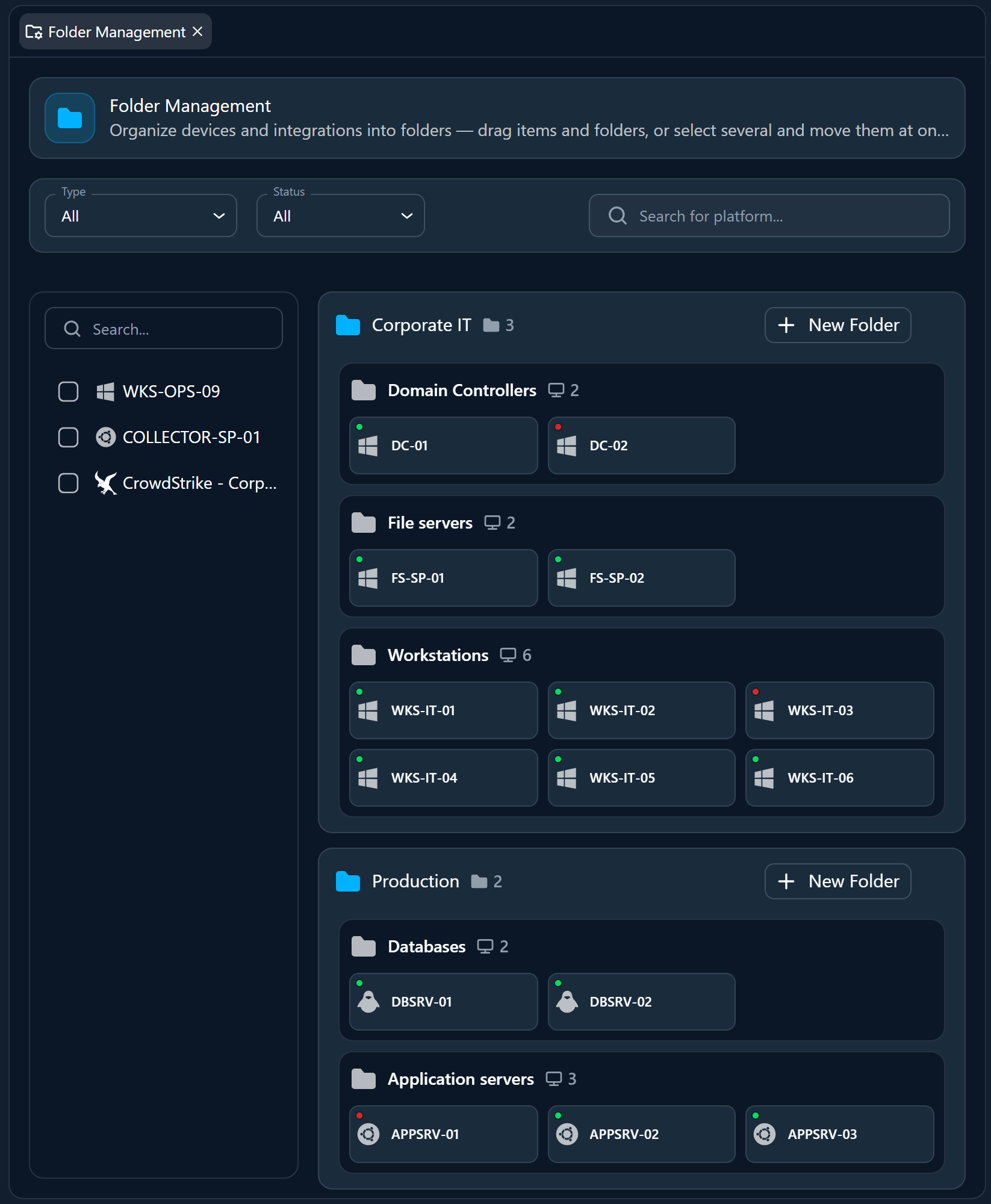
Folder Management tab
Open the dedicated tab for advanced organization — drag and drop assets
between folders and batch-move many items at once.
Steering the AI with Rules
Every folder can carry a rule — a free-text, natural-language instruction that tells the agents how to handle the assets inside it. Rules travel with the folder, so anything you place in it inherits the guidance automatically. Use rules to encode the operational context the AI can’t infer on its own:“For every server in the Production folder, assume high-availability requirements and flag any change that could cause downtime.”
“Treat integrations in this folder as read-only — investigate and report, but never make changes.”Because a rule is just instructions in your own words, you can be as specific as you need — preferred tooling, escalation expectations, compliance constraints — and update it any time as your environment changes.
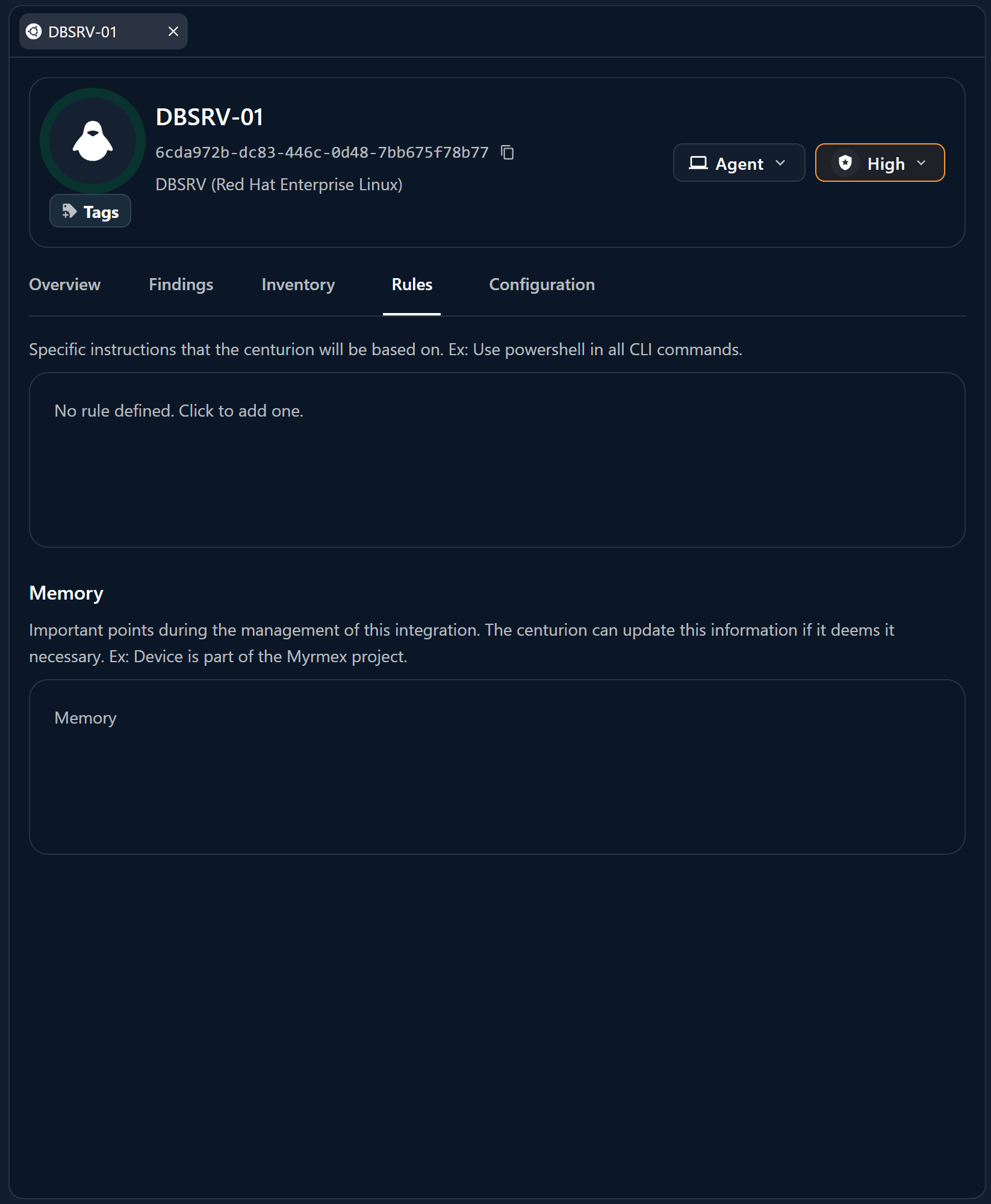
Folder rules apply to a whole group of assets. You can also set a rule on an
individual device or integration for finer control — see
Rules in Core Concepts.
Where to Go Next
The Workspace
How the Directory fits into the console shell.
Chatting with the AI
Mention a
@folder in chat to scope a request to everything inside it.