

The Console at a Glance
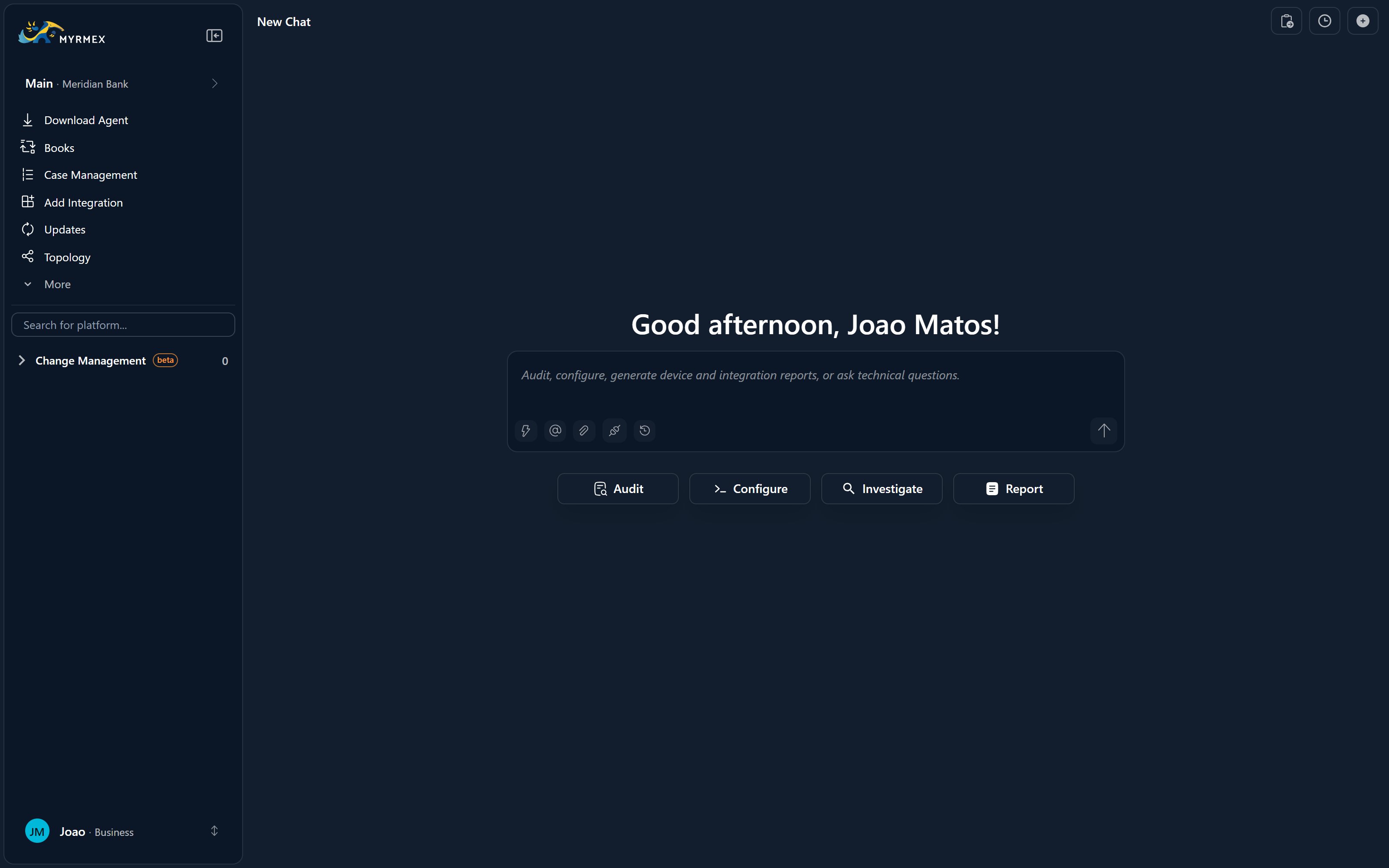
The console has three regions, left to right.Directory (left)
A navigable map of your environment — the context selector, quick actions,
your assets, and your account.
Chat (center)
The conversational surface where you talk to Centurion and the specialist
agents in plain language.
Workspace (right)
The right-hand panel where work opens as persistent tabs — device
details, reports, playbooks, dashboards, and more.
Almost everything you see is scoped to the context you have selected — the
working environment chosen automatically when you sign in. Switching context
filters the Directory, chat, and tabs to that environment. See
Core Concepts.
The Directory
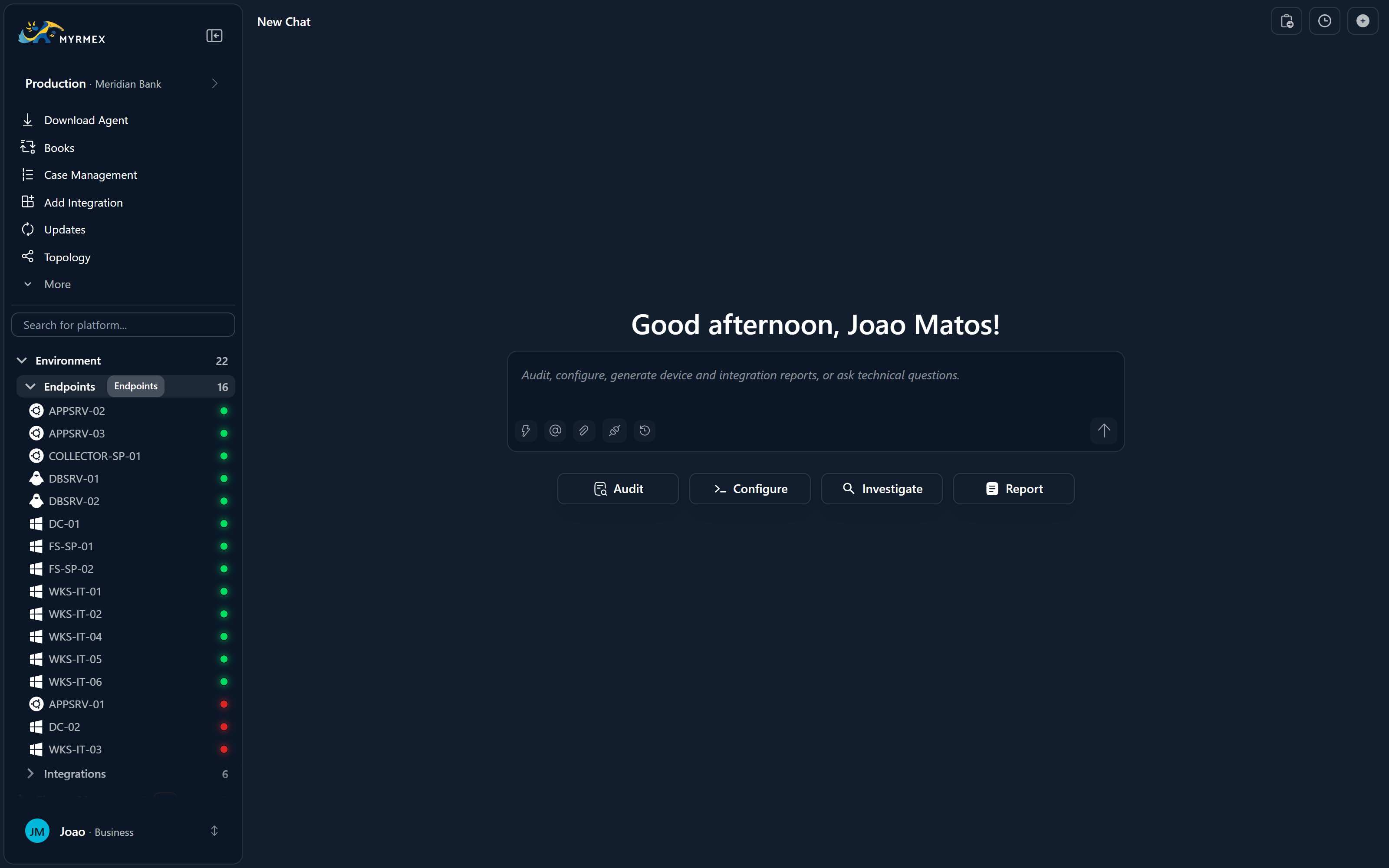
The Directory on the left is your navigation hub. From top to bottom it holds:1
Context selector
At the top, switch the active organization and context. Everything below
reflects the environment you pick.
2
Search
Find any asset or area across the platform quickly.
3
Quick actions
A row of six shortcuts to the things you reach for most — see below.
4
Environment
Your assets, grouped and expandable with live counts — see below.
5
Account menu
At the very bottom, your user card opens settings and account options.
Quick actions
Six shortcuts sit just under the search box:Download Agent
Onboard a new device with an installation token.
Add Integration
Connect an external tool — cloud, firewall, SIEM, EDR, and more.
Updates
Review and schedule patches across your fleet.
Case Management
Triage alerts, service-management tickets, and threat intelligence.
Security Posture
See your environment scored against compliance frameworks.
Books
Open the automation library of playbooks and runbooks.
Environment
Below the shortcuts, the Environment section lists your assets, each expandable and showing a live count:- Devices — the endpoints registered in Myrmex.
- Integrations — your connected external tools.
- Artifacts — generated documents: Reports, Policies, and Audits.
- Change Management — your change requests (GMUD).
Account menu
Your user card at the bottom opens account and workspace options: Settings, Language, Billing & usage, Learning, Audit logs, and Sign out.Chat, at the Center
The center of the console is the chat. Type what you want and Centurion, the orchestrator, routes it to the right specialist — or call an agent directly with an@-mention. Four controls sit at the top of the chat: New chat, History, Clipboard, and Favorite. As the agents work, their reasoning and tool calls stream live, and results open as tabs in the Workspace on the right.
Chatting with the AI
Natural language,
@-mentions, prompt templates, attachments, and artifacts.Live reasoning & panels
Watch agents think and act, with live terminals, dashboards, and reports.
The Workspace Panel
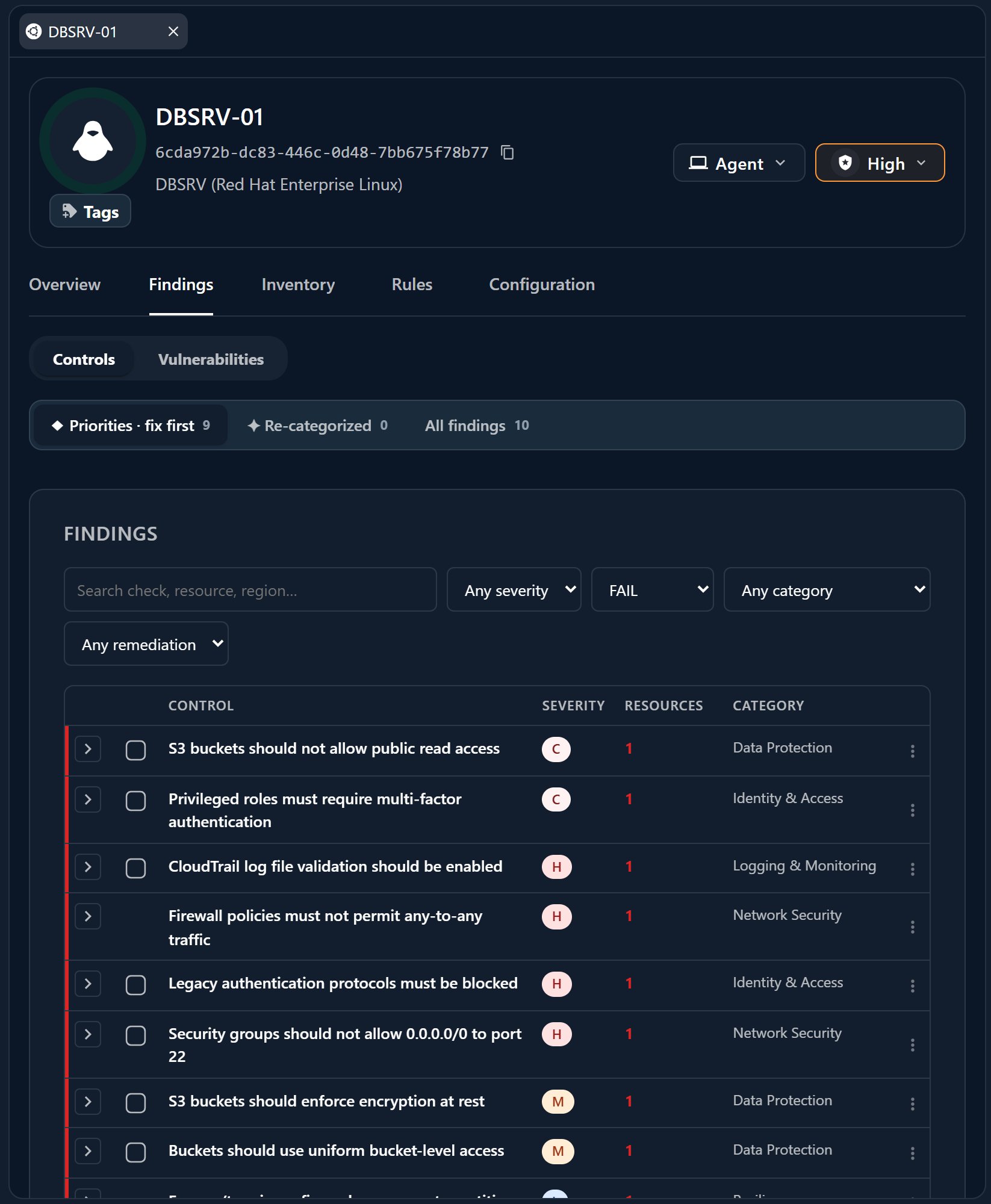
Everything you open — a device, a report, a playbook run, a log explorer — becomes a tab in the Workspace panel on the right, and its state persists as you move between them. On a wide screen you can split the panel into two and drag tabs between them.Tabs & split view
Persistent tabs for every kind of work, plus side-by-side split view.
Clipboard & usage
Collect snippets from chat and track token and chat usage over time.
Where to Go Next
Quickstart
Sign in, connect an asset, and ask the AI your first question.
Meet the agents
Learn what each specialist does and how they collaborate.