

A GMUD is a single change request: what will change, why, on which systems,
when, how it will be rolled back, and who signed off. It carries the change from
a draft all the way through to a completed, audited execution.
Two Kinds of Change
Change Management handles two kinds of change, and the difference is mainly how each one runs:Standard change
A change you (or the AI) plan out — a configuration edit, a firewall-rule
change, a maintenance task. It has an implementation plan and a
rollback plan, and once approved you start it explicitly with Execute.
The agents then carry out the steps.
Update patch
An operating-system patch rollout that originates in the
Updates area. The AI
schedules the pending patches into a maintenance window; once approved, the
agent installs them automatically in that window — no manual Execute.
The Lifecycle of a Change
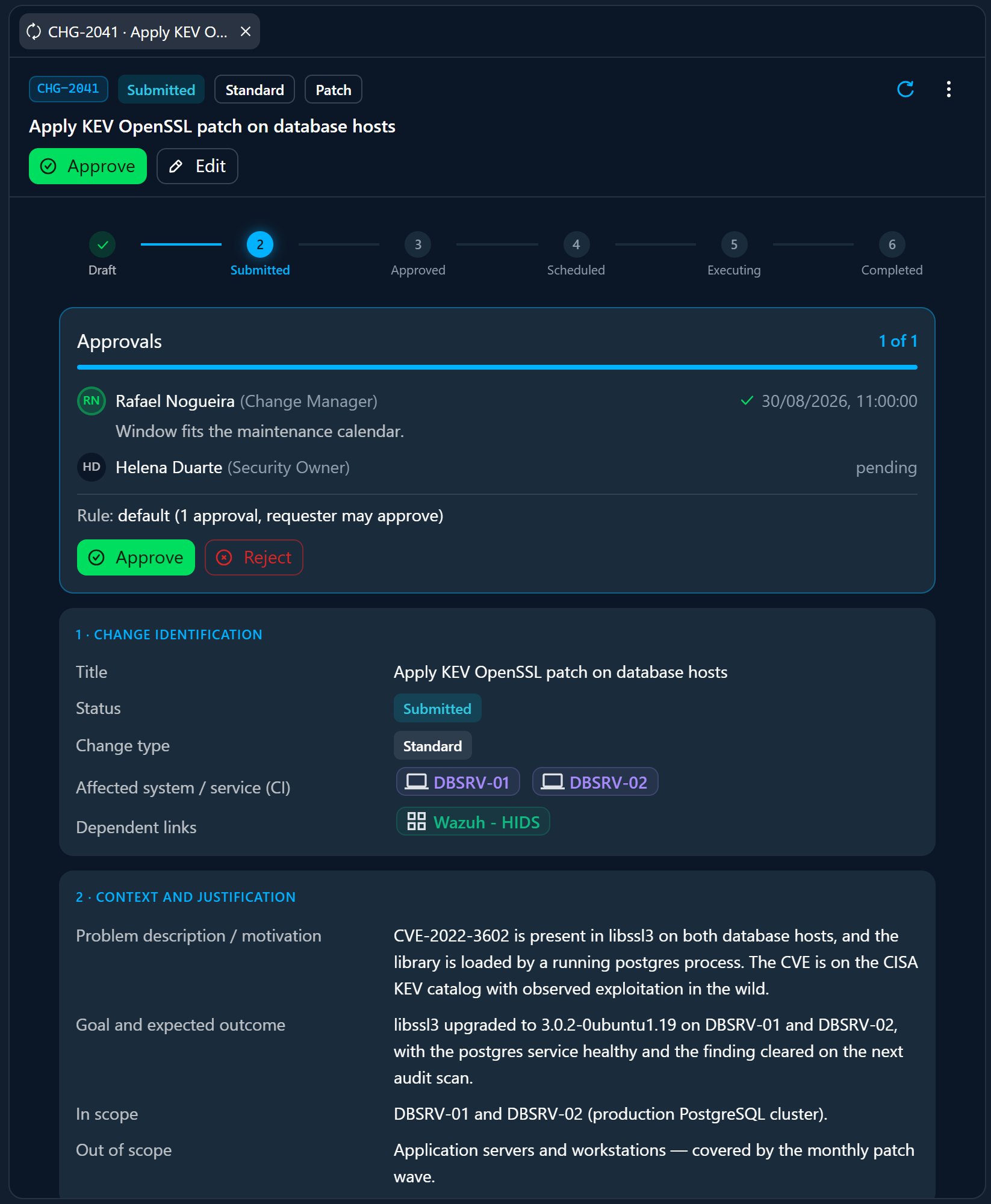
A GMUD moves through a fixed set of states. The happy path is six stages; a handful of exception states close a change that didn’t complete normally.1
Draft
The change is being written — identification, justification, risk, window,
and the implementation/rollback steps. Fully editable.
2
Submitted
Sent for approval. It now waits on approvers according to the matching
approval rule.
3
Approved
Enough approvals were recorded. A standard change is now ready to Execute;
a patch is ready to run in its window.
4
Scheduled
The change is queued for its change window. While scheduled, the record
auto-refreshes every 60 seconds.
5
Executing
The agents are running the steps. For a patch, the packages are installing on
the target hosts.
6
Completed
Every step finished successfully. The change is closed and fully audited.
Anatomy of a Change
Every GMUD is a structured document. When you open one, it’s organized into the sections a change-advisory board would expect:Change Identification
Title, status, change type, technical category, and kind (standard
change or patch).
Context and Justification
The problem or motivation, the goal and expected outcome, and what is
explicitly in scope and out of scope.
Risk and Impact Assessment
Probability, impact, and the final risk level; impacted services and users,
expected downtime, security/compliance risks, and dependencies.
Affected systems (CIs)
The devices and integrations the change touches, each linked as affected or
dependent — so the blast radius is explicit.
Change Window
Start and end of the maintenance window, plus stakeholder communication. The
record shows when the window opens and closes.
Implementation & Rollback Plans
The ordered steps to make the change and the steps to undo it — see below.
Implementation and rollback steps
The plan is a list of ordered steps, each tagged Implementation or Rollback. A step records the activity, its order, an owner, an expected duration, and — optionally — a target (a specific device or integration) and an action to run there. During execution, each step shows its own status, so you can see exactly how far the change got and what remains if something needs to be undone.How You Get There
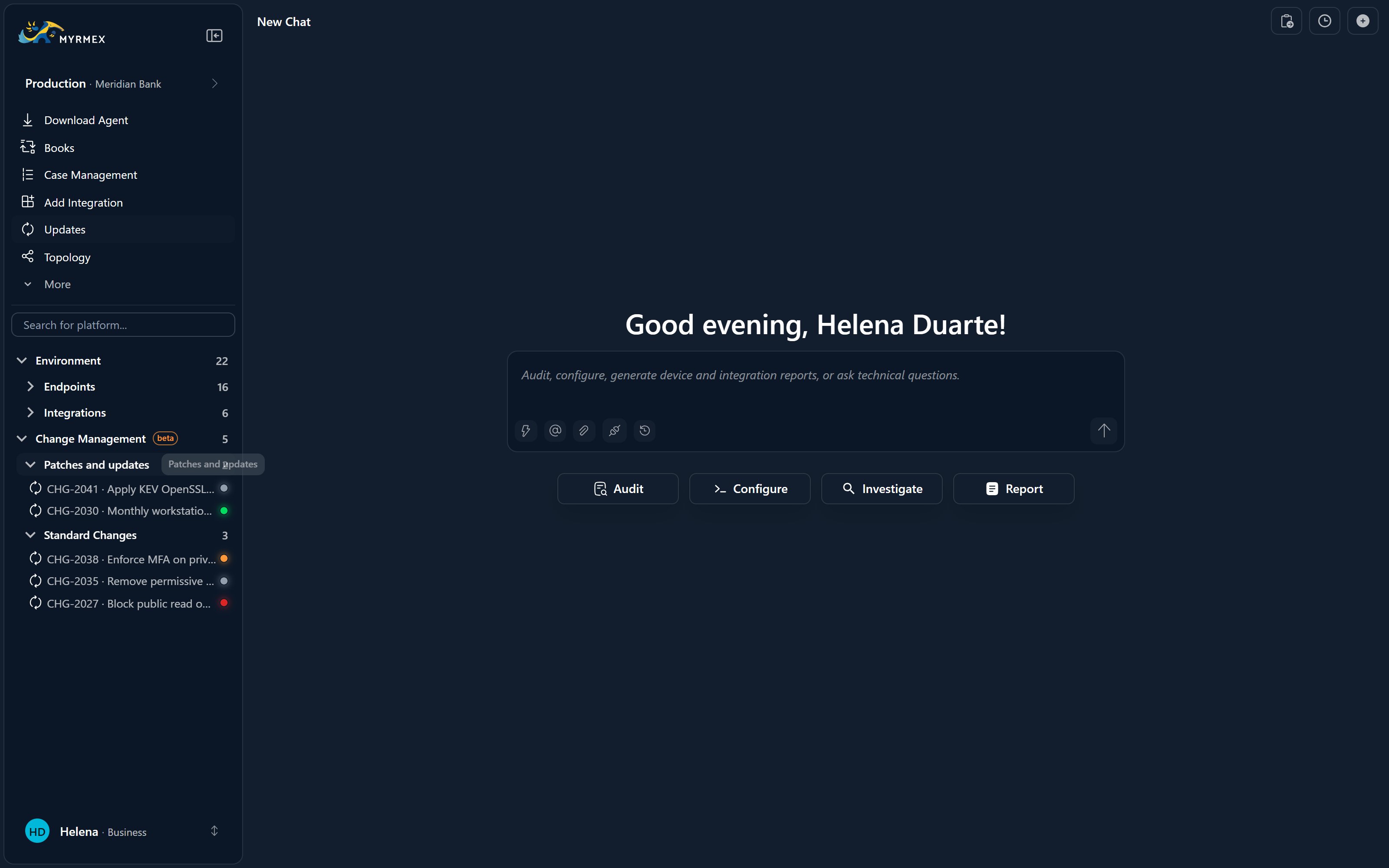
Open Change Management from the Directory on the left of the console. It lists your changes for the context you have selected — standard changes and patch changes are shown with distinct icons — and each one opens as a tab in the Workspace. Viewing it requires thegmuds.read permission.
You can also bring a change into a conversation: @-mention a change (or a patch) as a context entity and ask the AI about it, or ask it to draft or adjust one.
Where the AI Fits
Change Management is deeply tied to the agents:- Drafting — ask Centurion to prepare a change and it fills in the identification, risk, window, and a first implementation/rollback plan for you to review.
- Proposing patches — the AI reviews pending updates and proposes a patch change (a patch-kind GMUD) with a maintenance window (see Patch & Update Management).
- Execution — once you approve (and, for a standard change, click Execute), the agents run the steps, driven from the Workspace.
Activity Trail and Export
Every GMUD carries an Activity timeline: when it was created and by whom, each approval or rejection (with the reason given), each step as it executed, and the last update. It answers “who did what, and when?” on the record itself. You can also export the change as a PDF — for a change-advisory board or an auditor — straight from the record.Next
Approval workflow & rules
How submit → approve → execute works, and how to govern who must approve what.
Patch & Update Management
Review pending OS updates and approve the patch schedules the AI proposes.