

@-mentions to call a specific agent or point to a specific resource.
Scope Requests with @-mentions
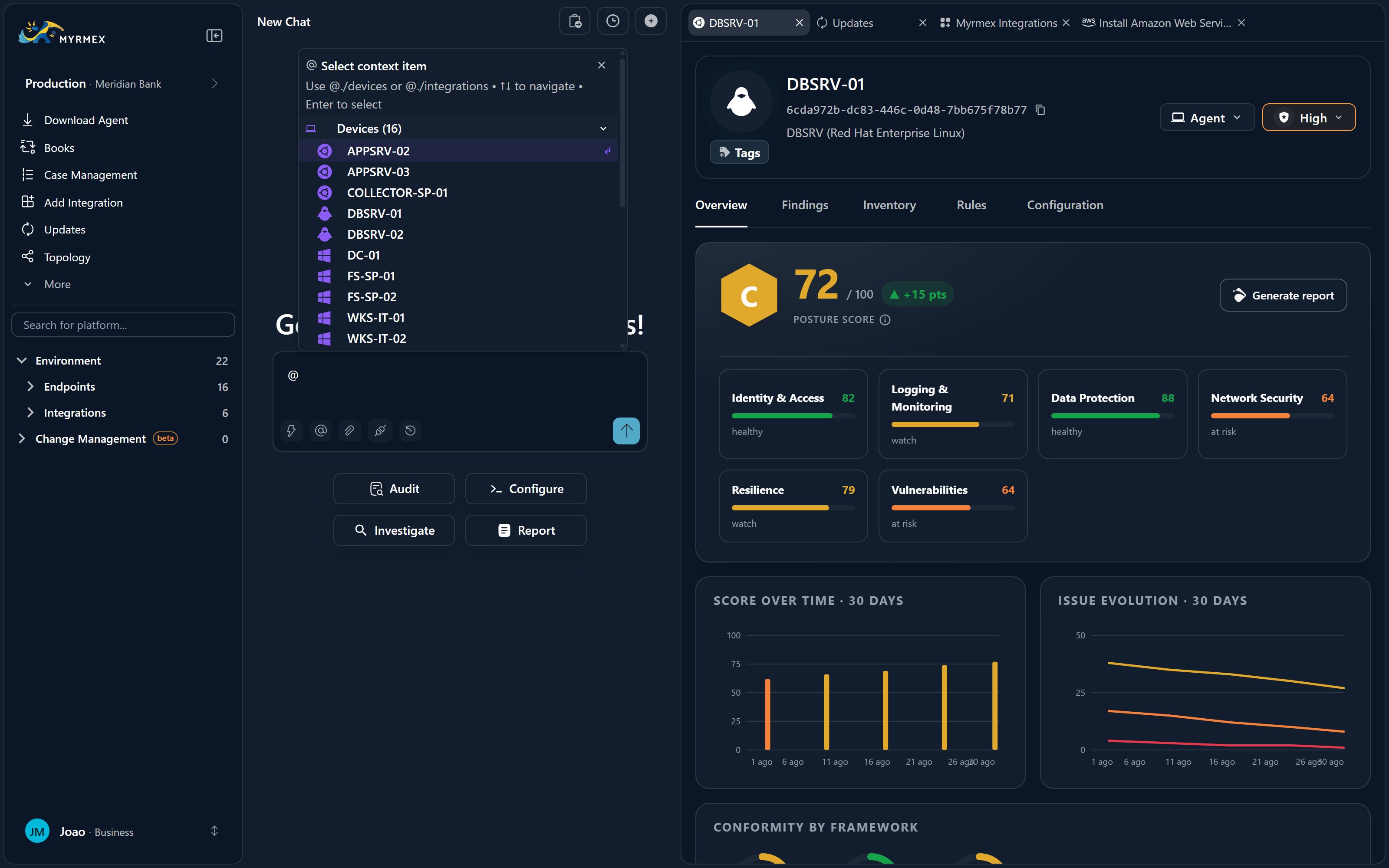
Type @ to bring up a picker. You can mention two kinds of things, and each one appears in your message as a colored chip so the agents know exactly what you mean.
Mention an agent
Route the request to a specialist — for example
@Perseus to run a host
check or @Scribe to write a report. Skip it and Centurion picks for you.Mention a resource
Scope the request to a specific device, integration, report, alert,
folder, or file so the agents act on exactly the right asset.
Start from a Prompt Template
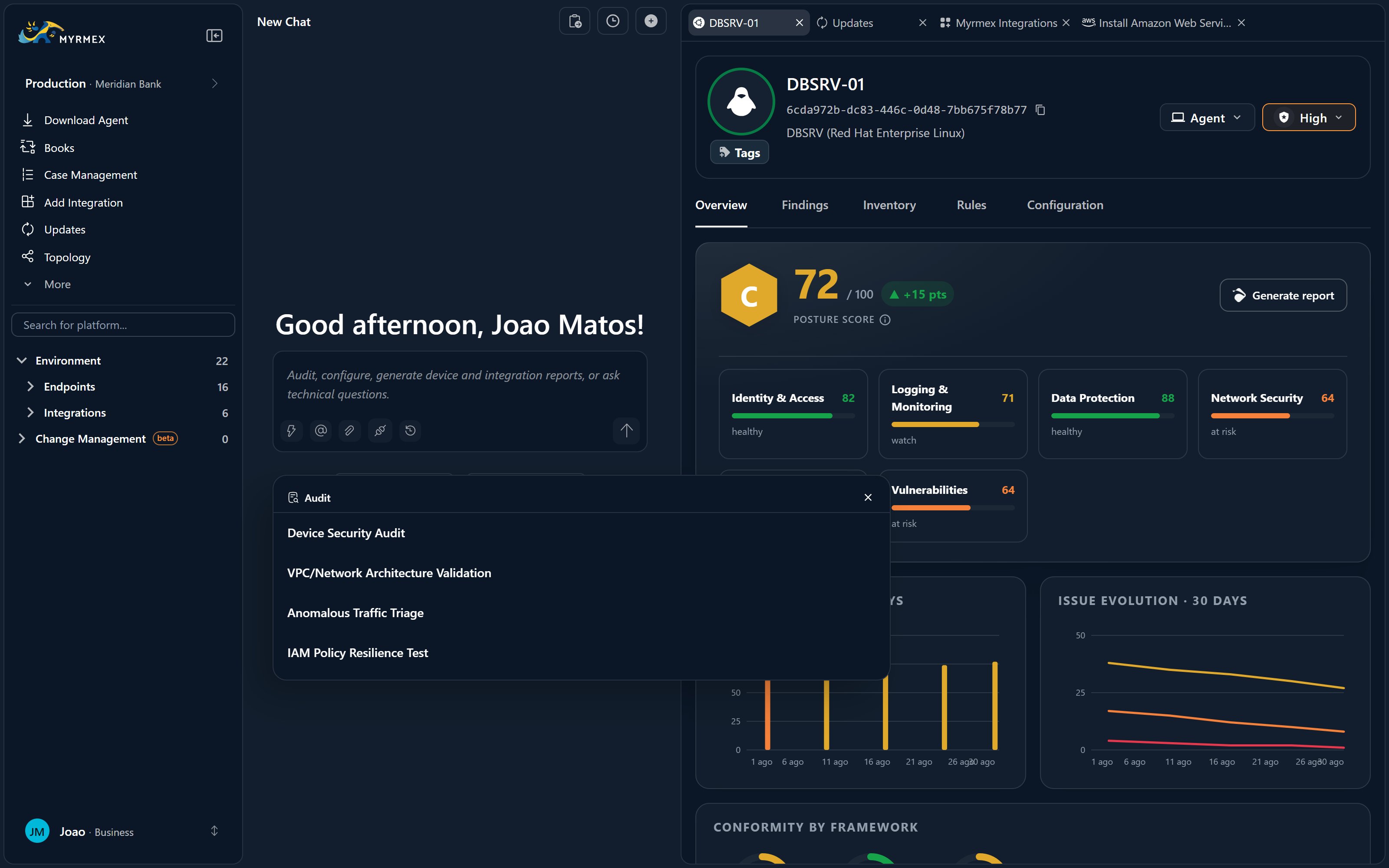
If you’re not sure how to phrase a request, pick a predefined template to get a well-formed starting prompt you can edit before sending.Audit
Kick off an assessment of a device, integration, or your environment.
Configuration
Change or harden the settings of a connected asset.
Investigation
Look into an alert, indicator, or suspicious behavior.
Report
Turn an analysis into a shareable document.
Pull in External Documents
Type/ to run a slash command. Slash commands let you pull a document straight into the conversation from SharePoint or Google Drive — for example a /read-document command backed by your personal connectors — so the agents can work from a spec, policy, or spreadsheet you already have.
Attach Files and Images
Attach files directly to a message when you want the agents to analyze something you have on hand — documents (PDF, TXT), images (PNG, JPG), and audio. The content becomes part of the request context.Work Faster in the Input Box
Queue follow-ups
While an agent is working, line up to three more messages — they send
automatically as the current one finishes.
Recall messages
Press
Ctrl+↑ and Ctrl+↓ to cycle through messages you sent earlier and
reuse them.Autocomplete words
Press
Tab to accept context-aware suggestions for commands and asset names
as you type.Track usage
A usage indicator shows how much of the conversation’s large context window
(on the order of one million tokens) you’ve used.
Act on a Response
Every agent message carries its own actions:- Copy the message text.
- Rate it with thumbs up or thumbs down to send feedback that improves the agents.
- Send to Clipboard to collect a table, JSON, or code block in the Clipboard tab for editing and reuse.
Manage Your Conversations
Start a New Chat to pivot to a fresh topic, Favorite a conversation to pin it, and open History to return to any past thread.As the agents work, results open as tabs in the Workspace panel on the right,
so you never lose your place. Watch agents reason and act in Live reasoning &
operational panels.